6 Tips for Troubleshooting Common Ally Errors
Ally flagged it. What to do when guidance isn’t enough
Blackboard Ally is one of the most useful tools in your course accessibility toolkit. It scans your content, flags potential barriers, and offers step-by-step guidance for fixing them. However, sometimes the guidance can be unclear, the fix doesn’t seem to work, or you’re not sure whether what Ally flagged is actually a problem. This article walks through the most common Ally errors faculty encounter, and what to do when the built-in guidance doesn’t get you all the way there.
1. Missing or Poor Alt Text on Images
Ally flags images that are missing alt text or have alt text that may not be meaningful (for example, a filename like “image001.jpg” used as alt text).
-
Fix it in Blackboard: Click the Ally indicator next to the content item and follow the AI Alt Text Assistant prompts. You can accept an AI-generated suggestion or write your own. If it truly doesn’t contribute meaning or purpose to the content, you can mark it as decorative.
-
Fix it in the source file: If the image is inside an uploaded Word, PowerPoint, or PDF, update the alt text in the original file and re-upload as a new version to replace the old file
When Ally’s guidance isn’t enough: Ally’s AI Alt Text Assistant is fairly sophisticated and provides an excellent starting point for complex images. However, if the image is a chart, diagram, or map, and your learning outcome requires more detail, a one-sentence description may not be sufficient. A long description, typically linked in a separate document, helps provide additional information or context.
2. Untagged or Poorly Tagged PDFs
Untagged PDFs are one of Ally’s most common and most frustrating flags. A PDF without accessibility tags cannot be read in order by a screen reader. Scanned PDFs are almost always untagged.
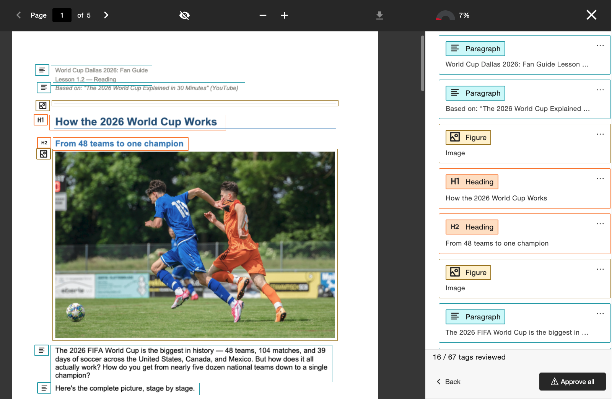
Image: Ally generates suggested tags for review and approval.
-
Use Ally’s new auto-tagging feature: Ally will scan your PDF and generate tags based on the content in the PDF. You can review the suggested tags and approve the document to apply the tags. At this time, you cannot edit the tags or selectively approve the tags.
-
If you need to modify the tags and you have the original source file: Go back to Word, Google Docs, or PowerPoint, ensure the document is structured with headings and proper formatting, and re-export as a tagged PDF using “Save as PDF” (not print-to-PDF).
-
If you need to modify the tags and you only have the PDF: Use Adobe Acrobat’s Accessibility Checker (Tools → Accessibility → Full Check) to identify and repair tagging issues. This takes more time, but is doable for shorter documents.
When Ally’s guidance isn’t enough: Consider whether the PDF can be replaced with content built directly in Blackboard, which is accessible by design. Blackboard can convert many files, including Microsoft Word and PowerPoint, to an accessible-friendly web format.
3. Document Language Not Set
Ally sometimes flags that a document’s language is not specified. This matters because screen readers use language metadata to apply the correct pronunciation rules.
When Ally’s guidance isn’t enough: If Ally does not have your document’s language, you can set the language in the source file within Word, Google Docs, and Adobe Acrobat.
4. Low Color Contrast
Ally flags content where text color does not have sufficient contrast against its background -- a barrier for students with low vision or color blindness. A contrast ratio of at least 4.5:1 for normal text is ideal.
-
When Ally flags a file: Open the original document, update the text or background color, and re-upload.
-
In Blackboard’s rich text editor, stick to the default text colors, which are already color contrast-compliant.
-
Avoid light gray text on white backgrounds, yellow text on white, or red text on green.
When Ally’s guidance isn’t enough: Use WebAIM’s free Contrast Checker to test any color combination before using it in course materials.
5. Missing or Skipped Heading Structure
Headings are essential navigation landmarks for screen reader users. Ally flags documents that lack headings or use heading levels out of order (for example, jumping from Heading 1 to Heading 3).
-
In Word and Google Docs: Apply heading styles from the Styles panel -- Heading 1 for your title, Heading 2 for major sections, Heading 3 for subsections. Don’t skip levels.
-
In PowerPoint: Use the default slide title field for each slide’s title rather than inserting a text box.
-
In Blackboard: Use the paragraph format dropdown in the rich text editor to apply heading levels to your content.
6. Missing Document Title
Ally may flag a document with a missing title, which is different from the document name. Instructors can set a title using Ally and quickly save this change. Titles may not have the following:
-
use special characters or end in a period
-
end with a file extensions (e.g., pdf, xls, doc)
-
match the file name exactly
Ally’s built-in guidance covers most common scenarios, but some files require more hands-on support. If you’ve followed the guidance and the issue persists, or if you’re working with a complex document type you’re not sure how to fix, Instructional Technology is here to help. You can also reach us via RT to submit a ticket or schedule a 1:1 consultation.
]]>
Blackboard Ally is one of the most useful tools in your course accessibility toolkit. It scans your content, flags potential barriers, and offers step-by-step guidance for fixing them. However, ...
Inline Image
https://assets3-my.umbc.edu/system/shared/attachments/80068d14ea342a0e7d7806f6a5a43723/6ad4ceb8/news/000/161/947/8b2eda98661a487a57576b4b91924fb1/blobid0.png?1787678049
https://my3.my.umbc.edu/api/v0/pixel/news/161947/guest@my.umbc.edu/c6829204c9d937ef5c0485e7ea5e3256/api/pixel
ally
da
digital-accessibility
pdf
remediation
Instructional Technology
https://my3.my.umbc.edu/groups/instructional-technology
https://assets2-my.umbc.edu/system/shared/avatars/groups/000/001/164/dec3b026b81ee6d890a8f82f75c94a2e/xsmall.png?1446126703
https://assets1-my.umbc.edu/system/shared/avatars/groups/000/001/164/dec3b026b81ee6d890a8f82f75c94a2e/original.png?1446126703
https://assets2-my.umbc.edu/system/shared/avatars/groups/000/001/164/dec3b026b81ee6d890a8f82f75c94a2e/xxlarge.png?1446126703
https://assets1-my.umbc.edu/system/shared/avatars/groups/000/001/164/dec3b026b81ee6d890a8f82f75c94a2e/xlarge.png?1446126703
https://assets1-my.umbc.edu/system/shared/avatars/groups/000/001/164/dec3b026b81ee6d890a8f82f75c94a2e/large.png?1446126703
https://assets4-my.umbc.edu/system/shared/avatars/groups/000/001/164/dec3b026b81ee6d890a8f82f75c94a2e/medium.png?1446126703
https://assets3-my.umbc.edu/system/shared/avatars/groups/000/001/164/dec3b026b81ee6d890a8f82f75c94a2e/small.png?1446126703
https://assets2-my.umbc.edu/system/shared/avatars/groups/000/001/164/dec3b026b81ee6d890a8f82f75c94a2e/xsmall.png?1446126703
https://assets3-my.umbc.edu/system/shared/avatars/groups/000/001/164/dec3b026b81ee6d890a8f82f75c94a2e/xxsmall.png?1446126703
Instructional Technology
https://assets4-my.umbc.edu/system/shared/thumbnails/news/000/161/947/adbdd7400b4c6f5e95cbe849afa8ca53/xxlarge.jpg?1787649797
https://assets2-my.umbc.edu/system/shared/thumbnails/news/000/161/947/adbdd7400b4c6f5e95cbe849afa8ca53/xlarge.jpg?1787649797
https://assets3-my.umbc.edu/system/shared/thumbnails/news/000/161/947/adbdd7400b4c6f5e95cbe849afa8ca53/large.jpg?1787649797
https://assets1-my.umbc.edu/system/shared/thumbnails/news/000/161/947/adbdd7400b4c6f5e95cbe849afa8ca53/medium.jpg?1787649797
https://assets1-my.umbc.edu/system/shared/thumbnails/news/000/161/947/adbdd7400b4c6f5e95cbe849afa8ca53/small.jpg?1787649797
https://assets1-my.umbc.edu/system/shared/thumbnails/news/000/161/947/adbdd7400b4c6f5e95cbe849afa8ca53/xsmall.jpg?1787649797
https://assets2-my.umbc.edu/system/shared/thumbnails/news/000/161/947/adbdd7400b4c6f5e95cbe849afa8ca53/xxsmall.jpg?1787649797
A human figure with outstretched arms inside a circle of two curved arrows, suggesting movement. Below the figure are two words: digital accessibility.
2
1
true
Tue, 25 Aug 2026 14:12:20 -0400
Mind the Gap: 6 Accessibility Features to Improve Your Ally Score
How to scan, fix, and improve your Blackboard files easily.
You just finished uploading a PDF - a syllabus, lecture notes, or a set of slides exported for printing. It looks fine to you, but how does it perform for a student relying on a screen reader? Would those scanned pages you dropped in actually be readable at all?
That is the exact gap Blackboard Ally is built to close. Running quietly in the background of every course and organization, Ally checks your files and gives you quick, actionable ways to fix what it finds. Here is a refresher on how Ally helps you save time, improve readability, and create a better learning experience for every student.
1. See Accessibility at a Glance with Color-Coded Meters
Every file you upload and link in Blackboard is scanned by Ally. Next to each piece of content is a color-coded accessibility meter that resembles a gauge. These color-coded gauges are visible only to you, never to students. The color coding can tell you at a quick glance the level of accessibility -- ranging from green or orange (high to perfect) to yellow or red (low to medium).

Image: Ally scores range from Low to Perfect.
-
Low, medium, high, and perfect ratings give you an immediate sense of priority without opening the file.
-
Click any meter to see exactly what's wrong and how to fix it, right where the content lives in your course.
2. Use the Course Report to Prioritize Your Time
Rather than checking every file one by one, Ally’s Course Accessibility Report (accessed and launched from Books & Tools -> Ally) gives you a course-wide score, a breakdown by content type, and a list of issues sorted by severity.
-
Start with "Easy issues to fix" -- these are often the fastest way to raise your score.
-
Many easy fixes turn out to be missing image descriptions, so that one filter can knock out a lot of ground quickly.
3. Fix PDF Problems Without Leaving Blackboard
Ally's "quick fixes" handle some of the most common PDF issues, such as missing titles, missing language settings, and scanned-only pages. All are visible right inside the Instructor Feedback panel.
-
Add a title or set the document language in seconds through a simple field or dropdown.
-
Convert a scanned PDF to readable text with built-in OCR, with the option to preview and download the original first.
4. Let Ally Auto-Tag Your PDFs
With Ally's Auto-Tagging feature, UMBC instructors can now generate a full tag structure for an untagged PDF automatically.
-
You review and approve the tag structure before anything is applied, and you can download the original file first.
-
It won't fix everything (image descriptions, tables, and contrast still need separate attention), but it removes the heaviest lift.
5. Give Every Student a Format That Works for Them
Ally can also generate alternative versions of your files, including audio, mobile-friendly HTML/ePub, Immersive Reader, and BeeLine Reader, which lets students choose what fits their needs, device, or moment.
-
A student might listen to the audio version on a commute, or use the HTML version to read comfortably on a phone.
-
Framing these as options for any student, not just those with accommodations, helps normalize their use.
6. Get AI-Assisted Suggestions for Image Descriptions
Missing alt text is one of the most common issues Ally flags. When it finds an image without a description, Ally can now generate a suggested one automatically.
-
You always review and approve the suggestion before it's saved; nothing is applied automatically.
-
For complex images or diagrams, tools like Gemini, Copilot, or ChatGPT can help you write a more detailed long description when Ally's suggestion isn't quite enough.
Coming Soon: AI Alt Text for Images Inside PDFs
Ally's next update extends AI-generated image descriptions into PDFs, so images embedded inside PDF files, not just standalone uploads, will be eligible for AI-suggested alt text. As with existing AI suggestions, instructors will review and approve every description before it's applied. We'll share more as this rolls out.
]]>
You just finished uploading a PDF - a syllabus, lecture notes, or a set of slides exported for printing. It looks fine to you, but how does it perform for a student relying on a screen reader?...
Inline Image
https://assets4-my.umbc.edu/system/shared/attachments/3106895d624f9be1fbb9b65ef72f1017/6ad4ceb8/news/000/161/714/0b9ad296faa8930bfad91f2c8e809cf6/mceclip0.png?1787072294
https://my3.my.umbc.edu/api/v0/pixel/news/161714/guest@my.umbc.edu/184d7c59c3f3106ebb6d720474b4086e/api/pixel
ally
da
digital-accessibility
pdf
remediation
Instructional Technology
https://my3.my.umbc.edu/groups/instructional-technology
https://assets2-my.umbc.edu/system/shared/avatars/groups/000/001/164/dec3b026b81ee6d890a8f82f75c94a2e/xsmall.png?1446126703
https://assets1-my.umbc.edu/system/shared/avatars/groups/000/001/164/dec3b026b81ee6d890a8f82f75c94a2e/original.png?1446126703
https://assets2-my.umbc.edu/system/shared/avatars/groups/000/001/164/dec3b026b81ee6d890a8f82f75c94a2e/xxlarge.png?1446126703
https://assets1-my.umbc.edu/system/shared/avatars/groups/000/001/164/dec3b026b81ee6d890a8f82f75c94a2e/xlarge.png?1446126703
https://assets1-my.umbc.edu/system/shared/avatars/groups/000/001/164/dec3b026b81ee6d890a8f82f75c94a2e/large.png?1446126703
https://assets4-my.umbc.edu/system/shared/avatars/groups/000/001/164/dec3b026b81ee6d890a8f82f75c94a2e/medium.png?1446126703
https://assets3-my.umbc.edu/system/shared/avatars/groups/000/001/164/dec3b026b81ee6d890a8f82f75c94a2e/small.png?1446126703
https://assets2-my.umbc.edu/system/shared/avatars/groups/000/001/164/dec3b026b81ee6d890a8f82f75c94a2e/xsmall.png?1446126703
https://assets3-my.umbc.edu/system/shared/avatars/groups/000/001/164/dec3b026b81ee6d890a8f82f75c94a2e/xxsmall.png?1446126703
Instructional Technology
https://assets2-my.umbc.edu/system/shared/thumbnails/news/000/161/714/6cfa1667a72ce24a67d24b3df87beeb5/xxlarge.jpg?1787070122
https://assets4-my.umbc.edu/system/shared/thumbnails/news/000/161/714/6cfa1667a72ce24a67d24b3df87beeb5/xlarge.jpg?1787070122
https://assets4-my.umbc.edu/system/shared/thumbnails/news/000/161/714/6cfa1667a72ce24a67d24b3df87beeb5/large.jpg?1787070122
https://assets1-my.umbc.edu/system/shared/thumbnails/news/000/161/714/6cfa1667a72ce24a67d24b3df87beeb5/medium.jpg?1787070122
https://assets4-my.umbc.edu/system/shared/thumbnails/news/000/161/714/6cfa1667a72ce24a67d24b3df87beeb5/small.jpg?1787070122
https://assets3-my.umbc.edu/system/shared/thumbnails/news/000/161/714/6cfa1667a72ce24a67d24b3df87beeb5/xsmall.jpg?1787070122
https://assets1-my.umbc.edu/system/shared/thumbnails/news/000/161/714/6cfa1667a72ce24a67d24b3df87beeb5/xxsmall.jpg?1787070122
A human figure with outstretched arms inside a circle of two curved arrows, suggesting movement. Below the figure are two words: digital accessibility.
3
0
true
Tue, 18 Aug 2026 13:28:03 -0400
Tue, 18 Aug 2026 13:37:42 -0400
5 Quick Wins for an Accessible Syllabus
Small fixes, big difference for every student.
Picture a student pulling up your syllabus before the first day of class. If they're using a screen reader and your document contains unstructured text, complex tables, and images without adequate descriptions, they may not be able to find your office hours, your late work policy, or even what textbook to buy. An accessible syllabus makes sure that each student gets the same information, at the same time, as everyone else in the room.
The good news: none of these fixes require rebuilding your syllabus from scratch. Here are five quick wins, whether you're working in Blackboard, Word, or Google Docs.
1. Use Real Headings, Not Just Bold Text
A heading that's just bold, larger text tells a sighted reader "this is a section title," but it tells a screen reader nothing. Screen reader users often navigate by jumping from heading to heading, and that navigation breaks entirely if headings aren't marked as actual headings.
Try this:
- Apply your platform's built-in heading styles (Heading 1, Heading 2, etc.) instead of manually resizing or bolding text.
- Keep headings in logical, nested order — don't skip from a Heading 2 straight to a Heading 4.
2. Add Alt Text to Every Image
A photo, logo, or chart without alt text is invisible to a screen reader user, even though it may carry information every other student can see at a glance.
Try this:
- Describe what the image is and why it's there, not just what it looks like.
- If an image is purely decorative, mark it as decorative rather than skipping it — leaving it unmarked forces screen readers to read a meaningless filename aloud.
3. Link to the Current Official Syllabus Statements
Retyping or paraphrasing UMBC's standard syllabus language from memory risks distributing outdated wording. Linking directly means students always see the accurate, current version.
Try this:
- Replace any pasted-in or remembered policy text with a link to UMBC Syllabus Language.
- Check this each semester — the source updates, so your link should point there rather than to a saved copy.
4. State Your Schedule and Late Work Policy Plainly
A vague policy or a schedule listed only by week number forces students to guess or infer — especially hard for students cross-referencing accommodation plans or juggling outside responsibilities.
Try this:
- List specific dates, not just "Week 3," so students can check deadlines against their own calendars.
- Spell out your late work and extension policy directly, rather than leaving it to be asked about.
5. Write Descriptive Link Text
"Click here" tells a screen reader nothing about where a link goes. Screen readers frequently pull up a list of all links on a page, out of context, so the link text itself has to describe the destination.
Try this:
- Replace bare URLs and generic phrases with a descriptive label, like "Course Withdrawal Policy" instead of "click here."
- Do this pass right before you post the syllabus — it's easy to forget once pasted links pile up.
Want the full picture? For platform-specific instructions, including tables, contrast, and exporting accessible PDFs, visit Accessible Syllabi on the Digital Accessibility website.
]]>
Picture a student pulling up your syllabus before the first day of class. If they're using a screen reader and your document contains unstructured text, complex tables, and images without adequate...
https://my3.my.umbc.edu/api/v0/pixel/news/161555/guest@my.umbc.edu/157dc579a17d57a21d611e4ae28826ef/api/pixel
da
digital-accessibility
syllabi
syllabus
Instructional Technology
https://my3.my.umbc.edu/groups/instructional-technology
https://assets2-my.umbc.edu/system/shared/avatars/groups/000/001/164/dec3b026b81ee6d890a8f82f75c94a2e/xsmall.png?1446126703
https://assets1-my.umbc.edu/system/shared/avatars/groups/000/001/164/dec3b026b81ee6d890a8f82f75c94a2e/original.png?1446126703
https://assets2-my.umbc.edu/system/shared/avatars/groups/000/001/164/dec3b026b81ee6d890a8f82f75c94a2e/xxlarge.png?1446126703
https://assets1-my.umbc.edu/system/shared/avatars/groups/000/001/164/dec3b026b81ee6d890a8f82f75c94a2e/xlarge.png?1446126703
https://assets1-my.umbc.edu/system/shared/avatars/groups/000/001/164/dec3b026b81ee6d890a8f82f75c94a2e/large.png?1446126703
https://assets4-my.umbc.edu/system/shared/avatars/groups/000/001/164/dec3b026b81ee6d890a8f82f75c94a2e/medium.png?1446126703
https://assets3-my.umbc.edu/system/shared/avatars/groups/000/001/164/dec3b026b81ee6d890a8f82f75c94a2e/small.png?1446126703
https://assets2-my.umbc.edu/system/shared/avatars/groups/000/001/164/dec3b026b81ee6d890a8f82f75c94a2e/xsmall.png?1446126703
https://assets3-my.umbc.edu/system/shared/avatars/groups/000/001/164/dec3b026b81ee6d890a8f82f75c94a2e/xxsmall.png?1446126703
Instructional Technology
https://assets3-my.umbc.edu/system/shared/thumbnails/news/000/161/555/df94fc0a0308ff88c3de396f544df8c1/xxlarge.jpg?1786470316
https://assets1-my.umbc.edu/system/shared/thumbnails/news/000/161/555/df94fc0a0308ff88c3de396f544df8c1/xlarge.jpg?1786470316
https://assets4-my.umbc.edu/system/shared/thumbnails/news/000/161/555/df94fc0a0308ff88c3de396f544df8c1/large.jpg?1786470316
https://assets3-my.umbc.edu/system/shared/thumbnails/news/000/161/555/df94fc0a0308ff88c3de396f544df8c1/medium.jpg?1786470316
https://assets3-my.umbc.edu/system/shared/thumbnails/news/000/161/555/df94fc0a0308ff88c3de396f544df8c1/small.jpg?1786470316
https://assets3-my.umbc.edu/system/shared/thumbnails/news/000/161/555/df94fc0a0308ff88c3de396f544df8c1/xsmall.jpg?1786470316
https://assets2-my.umbc.edu/system/shared/thumbnails/news/000/161/555/df94fc0a0308ff88c3de396f544df8c1/xxsmall.jpg?1786470316
A human figure with outstretched arms inside a circle of two curved arrows, suggesting movement. Below the figure are two words: digital accessibility.
5
0
true
Tue, 11 Aug 2026 14:00:00 -0400
Ready, Set, Accessible! Fall Course Prep Day Resources
Recordings, slide decks, and links... oh my!
The USM Kirwan Center for Academic Innovation shared the resources from the Ready, Set, Accessible! Fall Course Prep Day.
Held on August 3rd, this half-day virtual event was designed to help faculty take practical, manageable steps to improve the accessibility of their courses before classes begin. Whether you're updating an existing course, preparing new materials, or looking for a realistic place to begin, these resources offer concrete strategies, examples, and tools you can apply right away
Session 1: Digital Accessibility 101: A Coffee Chat Refresher
Nancy O’Neill, Executive Director, Kirwan Center for Academic Innovation, University System of Maryland
Resources Shared:
Session 2: Before You Assign It: Checking Course Materials for Accessibility
Haley Cristea, Instructional Designer, Salisbury University
Links Shared:
Session 3: The 10-Minute Assignment Makeover
Teresa Valais, Senior Instructional Designer, Towson University
Links Shared:
Session 4: Sense-Sational Design: A Full Spectrum Approach to Accessible, Inclusive and Interactive Learning
Karen Silverstrim, Instructional Designer, Salisbury University
Links Shared:
All recordings will also be available on the Digital Accessibility Hub in the coming days.
]]>
The USM Kirwan Center for Academic Innovation shared the resources from the Ready, Set, Accessible! Fall Course Prep Day. Held on August 3rd, this half-day virtual event was designed to help...
https://my3.my.umbc.edu/api/v0/pixel/news/161485/guest@my.umbc.edu/6e2eb07d57ae5403d5e1303dcb2364c1/api/pixel
da
digital-accessibility
prep-day
resources
usm
Instructional Technology
https://my3.my.umbc.edu/groups/instructional-technology
https://assets2-my.umbc.edu/system/shared/avatars/groups/000/001/164/dec3b026b81ee6d890a8f82f75c94a2e/xsmall.png?1446126703
https://assets1-my.umbc.edu/system/shared/avatars/groups/000/001/164/dec3b026b81ee6d890a8f82f75c94a2e/original.png?1446126703
https://assets2-my.umbc.edu/system/shared/avatars/groups/000/001/164/dec3b026b81ee6d890a8f82f75c94a2e/xxlarge.png?1446126703
https://assets1-my.umbc.edu/system/shared/avatars/groups/000/001/164/dec3b026b81ee6d890a8f82f75c94a2e/xlarge.png?1446126703
https://assets1-my.umbc.edu/system/shared/avatars/groups/000/001/164/dec3b026b81ee6d890a8f82f75c94a2e/large.png?1446126703
https://assets4-my.umbc.edu/system/shared/avatars/groups/000/001/164/dec3b026b81ee6d890a8f82f75c94a2e/medium.png?1446126703
https://assets3-my.umbc.edu/system/shared/avatars/groups/000/001/164/dec3b026b81ee6d890a8f82f75c94a2e/small.png?1446126703
https://assets2-my.umbc.edu/system/shared/avatars/groups/000/001/164/dec3b026b81ee6d890a8f82f75c94a2e/xsmall.png?1446126703
https://assets3-my.umbc.edu/system/shared/avatars/groups/000/001/164/dec3b026b81ee6d890a8f82f75c94a2e/xxsmall.png?1446126703
Instructional Technology
https://assets3-my.umbc.edu/system/shared/thumbnails/news/000/161/485/d86c666f5e001ffc64b253a74ddca395/xxlarge.jpg?1786106795
https://assets4-my.umbc.edu/system/shared/thumbnails/news/000/161/485/d86c666f5e001ffc64b253a74ddca395/xlarge.jpg?1786106795
https://assets2-my.umbc.edu/system/shared/thumbnails/news/000/161/485/d86c666f5e001ffc64b253a74ddca395/large.jpg?1786106795
https://assets4-my.umbc.edu/system/shared/thumbnails/news/000/161/485/d86c666f5e001ffc64b253a74ddca395/medium.jpg?1786106795
https://assets2-my.umbc.edu/system/shared/thumbnails/news/000/161/485/d86c666f5e001ffc64b253a74ddca395/small.jpg?1786106795
https://assets3-my.umbc.edu/system/shared/thumbnails/news/000/161/485/d86c666f5e001ffc64b253a74ddca395/xsmall.jpg?1786106795
https://assets1-my.umbc.edu/system/shared/thumbnails/news/000/161/485/d86c666f5e001ffc64b253a74ddca395/xxsmall.jpg?1786106795
A black circle with a sneaker and the word READY. A yellow circle with a stopwatch and the word SET. A red circle with an accessibility symbol and the word ACCESSIBLE. Below these is the phrase Fall Course Prep day and the stylized swooped colors black, yellow and red.
2
0
true
Mon, 10 Aug 2026 09:15:00 -0400
Beyond PDFs: 5 Better Ways to Share Content
Rethinking a default file format to remove barriers.
You've probably uploaded a PDF to your course or website dozens of times without a second thought: a syllabus, an article, a set of lecture notes.
PDFs are everywhere in higher ed. For years they have functioned as the safe, universal choice to prevent editing a file once it’s shared; however, PDFs are often the format most likely to create barriers for students, particularly those using assistive technology. What happens when a student using a screen reader opens that file and the reading order is scrambled, or the text isn’t recognized?
The good news: in many cases, you can share the same content in its original format - while preserving accessibility, simplifying updates, and still maintaining control over who can view or edit it.
When sharing content, here are five considerations that don't depend on a PDF.
1. PDFs Preserve Content Exactly the Way It’s Designed
One of the biggest reasons people choose PDFs is that they preserve formatting. Fonts, spacing, images, and page layout appear exactly as intended, regardless of the device or software a student might use. For documents where visual presentation is essential - such as official forms, archival records, or publisher materials - that consistency can be valuable.
But preserving appearance isn't the same as preserving accessibility. A PDF can look perfect on screen, yet may still be difficult or impossible for a screen reader to interpret if headings, reading order, image descriptions, or searchable text are missing.
2. Share Word Documents & PowerPoint Presentations
A well-structured accessible document, with headings, lists, alt text, and descriptive hyperlinks, is easier for every student to navigate than a scanned or exported PDF. It’s also far easier for you to update next semester. Structure is what makes a document work with a screen reader in the first place: without accurate headings, there's no way to jump between sections or understand how content is organized.
The same structural principles apply to slides: use built-in layouts instead of freeform text boxes, add alt text to images, and maintain a logical reading order so screen readers announce content in the right sequence.
Before exporting a document or presentation as a PDF, ask if students really need that fixed-layout file - or whether sharing the original document, presentation, or Blackboard content would provide the same information in a format that's easier to access, navigate, and update.
Related readings:
3. Share View-Only Files Instead of PDFs
Worried about users editing your original file? You don't need to convert to PDF to protect it.
-
In Microsoft Office (Word, PowerPoint, Excel), use Share → Can view to send a live, view-only link instead of a flattened export. Recipients still get a fully accessible, screen-reader-friendly document — just without edit access.
-
In Google Drive, set sharing permissions to Viewer so students can read but not edit or comment. Because the file stays in its native Google Docs or Slides format, it keeps its accessibility structure — no PDF export needed.
4. Let Blackboard Permissions Do the Work
Blackboard already has built-in tools for controlling access without ever touching a PDF.
-
Post content as an Ultra Document or in a Content Area, and use role-based permissions to control who can view, edit, or download.
-
This keeps materials in accessible, native web format while still restricting student access to editing.
5. Reconsider the Legacy of PDFs
This mindset isn't just for new content. Before you fix a PDF that's already in your course, ask the same question you'd ask about a new one: do you still need it? If the content has been replaced elsewhere, is redundant, or is simply out of date, removing it is the fastest way to improve accessibility - no reformatting required.
Sometimes a PDF really is the only option - a signed form, a publisher file, an archival document. When that happens, our 4 Strategies for Creating Accessible PDFs walks through how to remake or remediate it properly.
Visit UMBC's Digital Accessibility resource to learn more about managing PDF files.
]]>
You've probably uploaded a PDF to your course or website dozens of times without a second thought: a syllabus, an article, a set of lecture notes. PDFs are everywhere in higher ed. For years...
https://my3.my.umbc.edu/api/v0/pixel/news/161402/guest@my.umbc.edu/9444369deeea41b520887668210207ea/api/pixel
biro
da
digital-accessibility
pdf
remediation
Division of Information Technology (DoIT)
https://my3.my.umbc.edu/groups/doit
https://assets2-my.umbc.edu/system/shared/avatars/groups/000/000/021/d27760c5de12c74b73faec8d0e631acf/xsmall.png?1727453227
https://assets2-my.umbc.edu/system/shared/avatars/groups/000/000/021/d27760c5de12c74b73faec8d0e631acf/original.JPG?1727453227
https://assets1-my.umbc.edu/system/shared/avatars/groups/000/000/021/d27760c5de12c74b73faec8d0e631acf/xxlarge.png?1727453227
https://assets3-my.umbc.edu/system/shared/avatars/groups/000/000/021/d27760c5de12c74b73faec8d0e631acf/xlarge.png?1727453227
https://assets2-my.umbc.edu/system/shared/avatars/groups/000/000/021/d27760c5de12c74b73faec8d0e631acf/large.png?1727453227
https://assets2-my.umbc.edu/system/shared/avatars/groups/000/000/021/d27760c5de12c74b73faec8d0e631acf/medium.png?1727453227
https://assets2-my.umbc.edu/system/shared/avatars/groups/000/000/021/d27760c5de12c74b73faec8d0e631acf/small.png?1727453227
https://assets2-my.umbc.edu/system/shared/avatars/groups/000/000/021/d27760c5de12c74b73faec8d0e631acf/xsmall.png?1727453227
https://assets4-my.umbc.edu/system/shared/avatars/groups/000/000/021/d27760c5de12c74b73faec8d0e631acf/xxsmall.png?1727453227
Division of Information Technology (DoIT)
https://assets2-my.umbc.edu/system/shared/thumbnails/news/000/161/402/8fe12e945c2464d2598afad1d7229db5/xxlarge.jpg?1785764592
https://assets1-my.umbc.edu/system/shared/thumbnails/news/000/161/402/8fe12e945c2464d2598afad1d7229db5/xlarge.jpg?1785764592
https://assets4-my.umbc.edu/system/shared/thumbnails/news/000/161/402/8fe12e945c2464d2598afad1d7229db5/large.jpg?1785764592
https://assets1-my.umbc.edu/system/shared/thumbnails/news/000/161/402/8fe12e945c2464d2598afad1d7229db5/medium.jpg?1785764592
https://assets1-my.umbc.edu/system/shared/thumbnails/news/000/161/402/8fe12e945c2464d2598afad1d7229db5/small.jpg?1785764592
https://assets4-my.umbc.edu/system/shared/thumbnails/news/000/161/402/8fe12e945c2464d2598afad1d7229db5/xsmall.jpg?1785764592
https://assets2-my.umbc.edu/system/shared/thumbnails/news/000/161/402/8fe12e945c2464d2598afad1d7229db5/xxsmall.jpg?1785764592
A human figure with outstretched arms inside a circle of two curved arrows, suggesting movement. Below the figure are two words: digital accessibility.
2
0
true
Thu, 06 Aug 2026 09:29:14 -0400
Wed, 12 Aug 2026 15:00:49 -0400
Call for Applications: USM Faculty Mini-Grant to Boost Course Accessibility
Deadline: September 11, 2026
The USM Kirwan Center for Academic Innovation is pleased to announce a call for applications for the Boosting Course Accessibility Faculty Fellows program. This initiative will support up to 12 USM faculty members in engaging in digital accessibility-related course redesign to reduce barriers and support access for all students, including students with disabilities. Each selected faculty member will receive a $1,500 stipend and participate in a collaborative professional development program, culminating in a redesigned course for Spring 2027.
Program Goals
This program aims to:
- Promote inclusive teaching practices by equipping faculty with tools, strategies, and frameworks grounded in accessibility and Universal Design for Learning (UDL).
- Support the redesign of existing courses to reduce digital barriers for students with disabilities and increase access for all learners.
- Build a faculty-led culture of access and accountability across the USM through shared learning, peer exchange, and cross-campus collaboration.
- Establish models of accessible course design that can be shared, celebrated, and potentially scaled across departments, disciplines, and institutions.
Eligibility
Applicants must meet the following criteria:
Applicants should submit all required materials by Friday, September 11, 2026.
NOTE: All institutional and faculty grants awarded to UMBC must be routed to the Office of Sponsored Programs prior to submission. Contact your unit's business manager or proposal development staff to discuss your application. CAHSS faculty can request assistance from CARAT (Creative Achievement and Research Administration Team).
Timeline
Download a Word doc of this announcement. For more information, please contact Dr. Jennifer Potter, Associate Director, Kirwan Center for Academic Innovation, at jpotter@usmd.edu.
]]>
The USM Kirwan Center for Academic Innovation is pleased to announce a call for applications for the Boosting Course Accessibility Faculty Fellows program. This initiative will support up to 12...
https://my3.my.umbc.edu/api/v0/pixel/news/161422/guest@my.umbc.edu/1dd03c2c7d4e2b84b4e9372c05c7e656/api/pixel
cfp
course-redesign
digital-accessibility
mini-grants
usm
Instructional Technology
https://my3.my.umbc.edu/groups/instructional-technology
https://assets2-my.umbc.edu/system/shared/avatars/groups/000/001/164/dec3b026b81ee6d890a8f82f75c94a2e/xsmall.png?1446126703
https://assets1-my.umbc.edu/system/shared/avatars/groups/000/001/164/dec3b026b81ee6d890a8f82f75c94a2e/original.png?1446126703
https://assets2-my.umbc.edu/system/shared/avatars/groups/000/001/164/dec3b026b81ee6d890a8f82f75c94a2e/xxlarge.png?1446126703
https://assets1-my.umbc.edu/system/shared/avatars/groups/000/001/164/dec3b026b81ee6d890a8f82f75c94a2e/xlarge.png?1446126703
https://assets1-my.umbc.edu/system/shared/avatars/groups/000/001/164/dec3b026b81ee6d890a8f82f75c94a2e/large.png?1446126703
https://assets4-my.umbc.edu/system/shared/avatars/groups/000/001/164/dec3b026b81ee6d890a8f82f75c94a2e/medium.png?1446126703
https://assets3-my.umbc.edu/system/shared/avatars/groups/000/001/164/dec3b026b81ee6d890a8f82f75c94a2e/small.png?1446126703
https://assets2-my.umbc.edu/system/shared/avatars/groups/000/001/164/dec3b026b81ee6d890a8f82f75c94a2e/xsmall.png?1446126703
https://assets3-my.umbc.edu/system/shared/avatars/groups/000/001/164/dec3b026b81ee6d890a8f82f75c94a2e/xxsmall.png?1446126703
Instructional Technology
https://assets1-my.umbc.edu/system/shared/thumbnails/news/000/161/422/5cf37a3e49063114c00e2baa090ca544/xxlarge.jpg?1785849927
https://assets2-my.umbc.edu/system/shared/thumbnails/news/000/161/422/5cf37a3e49063114c00e2baa090ca544/xlarge.jpg?1785849927
https://assets2-my.umbc.edu/system/shared/thumbnails/news/000/161/422/5cf37a3e49063114c00e2baa090ca544/large.jpg?1785849927
https://assets2-my.umbc.edu/system/shared/thumbnails/news/000/161/422/5cf37a3e49063114c00e2baa090ca544/medium.jpg?1785849927
https://assets2-my.umbc.edu/system/shared/thumbnails/news/000/161/422/5cf37a3e49063114c00e2baa090ca544/small.jpg?1785849927
https://assets3-my.umbc.edu/system/shared/thumbnails/news/000/161/422/5cf37a3e49063114c00e2baa090ca544/xsmall.jpg?1785849927
https://assets2-my.umbc.edu/system/shared/thumbnails/news/000/161/422/5cf37a3e49063114c00e2baa090ca544/xxsmall.jpg?1785849927
A human figure with outstretched arms inside a circle of two curved arrows, suggesting movement. Below the figure are two words: digital accessibility.
2
0
true
Tue, 04 Aug 2026 09:30:24 -0400
Tue, 04 Aug 2026 13:56:45 -0400
Improve Your Digital Content: Join Us for Accessibility Workshops (August 17 & 21)
Enhance digital content accessibility for all users
As we gear up for the FA2026 semester, the Instructional Technology team is hosting Improve Your Digital Content Workshops on August 17th and August 21st. Whether you are completely new to Digital Accessibility or a seasoned pro looking to optimize your content, these 2 workshop sessions are designed to help either fix or create accessible content for everyone effortlessly.
All sessions are open to all faculty and instructional staff and will take place online via Google Meet. Here is the lineup for the week:
Workshop 1: Remediate Existing Course Content for Accessibility
August 17th, 12:00pm: Learn to identify and resolve common accessibility challenges. Register here.
Transition from conceptual understanding to practical application. Following a high-level review of the Blackboard Ally’s Insights and associated remediation workflows, participants will have dedicated time to update their own course files.
Workshop 2: Author & Build Accessible Materials
August 21st, 12:00pm: Master techniques for building inclusive digital documents. Register here.
Engage in a hands-on lab focused on proactive design. After exploring accessible-first methods within Microsoft Office, Google Workspace, and Blackboard, the session culminates in a guided time to develop your own materials.
Please register for each session separately, by signing up on each event page. Each session above has a link to the registration page. If your plans change after registration, please navigate back to this page to cancel your sign-up.
How to Attend & Important Details
To secure your spot, select "Sign Up" on the corresponding myUMBC event post and add it to your calendar. Registered participants will receive a calendar invitation from the host at least one week before the session.
For more information about digital accessibility, please visit UMBC's Digital Accessibility site at: accessibility.umbc.edu/digital-accessibility.
Connect with Instructional Technology
As always, if you have any questions about teaching, learning, and technology at UMBC, please consider the following options:
]]>
As we gear up for the FA2026 semester, the Instructional Technology team is hosting Improve Your Digital Content Workshops on August 17th and August 21st. Whether you are completely new to Digital...
https://my3.my.umbc.edu/api/v0/pixel/news/161270/guest@my.umbc.edu/a86ab6c2d19272c60c412c60f248dc5d/api/pixel
core
course-materials
da
digital-accessibility
workshop
Instructional Technology
https://my3.my.umbc.edu/groups/instructional-technology
https://assets2-my.umbc.edu/system/shared/avatars/groups/000/001/164/dec3b026b81ee6d890a8f82f75c94a2e/xsmall.png?1446126703
https://assets1-my.umbc.edu/system/shared/avatars/groups/000/001/164/dec3b026b81ee6d890a8f82f75c94a2e/original.png?1446126703
https://assets2-my.umbc.edu/system/shared/avatars/groups/000/001/164/dec3b026b81ee6d890a8f82f75c94a2e/xxlarge.png?1446126703
https://assets1-my.umbc.edu/system/shared/avatars/groups/000/001/164/dec3b026b81ee6d890a8f82f75c94a2e/xlarge.png?1446126703
https://assets1-my.umbc.edu/system/shared/avatars/groups/000/001/164/dec3b026b81ee6d890a8f82f75c94a2e/large.png?1446126703
https://assets4-my.umbc.edu/system/shared/avatars/groups/000/001/164/dec3b026b81ee6d890a8f82f75c94a2e/medium.png?1446126703
https://assets3-my.umbc.edu/system/shared/avatars/groups/000/001/164/dec3b026b81ee6d890a8f82f75c94a2e/small.png?1446126703
https://assets2-my.umbc.edu/system/shared/avatars/groups/000/001/164/dec3b026b81ee6d890a8f82f75c94a2e/xsmall.png?1446126703
https://assets3-my.umbc.edu/system/shared/avatars/groups/000/001/164/dec3b026b81ee6d890a8f82f75c94a2e/xxsmall.png?1446126703
Instructional Technology
https://assets1-my.umbc.edu/system/shared/thumbnails/news/000/161/270/066964944d0ca7b8efa63fa0a5b56594/xxlarge.jpg?1785182962
https://assets1-my.umbc.edu/system/shared/thumbnails/news/000/161/270/066964944d0ca7b8efa63fa0a5b56594/xlarge.jpg?1785182962
https://assets4-my.umbc.edu/system/shared/thumbnails/news/000/161/270/066964944d0ca7b8efa63fa0a5b56594/large.jpg?1785182962
https://assets4-my.umbc.edu/system/shared/thumbnails/news/000/161/270/066964944d0ca7b8efa63fa0a5b56594/medium.jpg?1785182962
https://assets1-my.umbc.edu/system/shared/thumbnails/news/000/161/270/066964944d0ca7b8efa63fa0a5b56594/small.jpg?1785182962
https://assets3-my.umbc.edu/system/shared/thumbnails/news/000/161/270/066964944d0ca7b8efa63fa0a5b56594/xsmall.jpg?1785182962
https://assets4-my.umbc.edu/system/shared/thumbnails/news/000/161/270/066964944d0ca7b8efa63fa0a5b56594/xxsmall.jpg?1785182962
A human figure with outstretched arms inside a circle of two curved arrows, suggesting movement. Below the figure are two words: digital accessibility.
3
0
true
Thu, 30 Jul 2026 12:15:00 -0400
Sun, 09 Aug 2026 13:40:07 -0400
Creating Accessible PDFs: 4 Tips for Success
Ensure your digital PDFs are inclusive for all learners.
PDFs are a staple of academic life, used for everything from syllabi to complex research articles. However, without intentional design, they can create significant barriers for students using screen readers or other assistive technologies. Making your PDFs accessible ensures that information is clear, searchable, and usable for every member of our community. By focusing on accessible creation and remediation techniques, transform your materials into inclusive learning tools.
1. Start with an Accessible Foundation
The most effective way to create an accessible PDF is to ensure the source file is accessible from the start. Whether you are working in Microsoft Word, Google Docs, or PowerPoint, following these core principles will save time and improve the final result:
-
Use Built-in Heading Styles: Instead of manually bolding or enlarging text, use styles like Heading 1, 2, and 3. This creates a logical structure that screen readers can navigate.
-
Add Meaningful Alt Text: Provide concise descriptions for images, charts, and graphics so their purpose is clear to those who cannot see them.
-
Use Descriptive Links: Avoid generic phrases like "click here." Use text that describes the destination or action, such as "Download the 2026 Course Syllabus." (Refer to 5 Tips for Creating Clear and Accessible Links for more information.)
2. Export the PDF with Accessibility
How you save your file as a PDF is just as important as how you format it. To ensure all your accessibility tags, like headings and alt text, are preserved, you must use the correct export method:
-
Avoid "Print to PDF": This function strips away the structural tags required for screen readers. (Tags provide the essential structure and semantics for a PDF, enabling screen reader navigation, defining logical reading order, and allowing content to reflow correctly on different devices.)
-
Save As/Download as PDF: In Microsoft Word or PowerPoint, use "Save As" and select the "Best for electronic distribution and accessibility" option. In Google Docs, use “File → Download → PDF Document” to generate a tagged file.
-
Verify Content: After exporting, perform a quick test to see if you can select the text. If you can, the text is searchable and accessible; if not, further work is needed.
3. Remediate Existing PDFs
When an original source file isn't available, remediating an existing PDF ensures that all students, including those relying on screen readers or other assistive technologies, can engage with course materials seamlessly.
-
Quick Fixes with Blackboard Ally: If your PDF is hosted in Blackboard, check Blackboard Ally first. Ally can resolve minor accessibility issues directly.
-
Comprehensive Remediation in Adobe Acrobat: For more complex documents, archived files, or scanned readings where you lack source files, Adobe Acrobat provides powerful remediation tools:
-
Apply OCR (Optical Character Recognition): Convert image-based scanned pages into searchable, readable text so screen readers can process the content.
-
Run Accessibility Checks: Use the built-in Accessibility Checker to detect structural barriers, missing tags, alt text gaps, or form field labels.
-
Manually verify Reading Order: Use the Reading Order tool to ensure assistive technologies present the content in a logical sequence that supports understanding.
-
Export the PDF: Remediate with Microsoft Word or PowerPoint’s Accessibility Checker. Then, converting it back to a source format is often the easiest way to add clear headings, alt text, and structured lists using familiar editing tools.
4. Prioritize What You Fix First
Remediating all course PDFs simultaneously is not necessary. Instead, use the insights from your Blackboard Ally course report to determine where to start:
-
Prioritize Required Materials: Focus on syllabi and required readings before optional handouts.
-
Target Low Scores: Address files with the lowest Blackboard Ally Course scores first to remove the most significant hurdles.
-
Actionable Elements: Ensure interactive elements like worksheets or forms are remediated so all students can participate.
-
Substitute When Needed: Replace uneditable files with accessible versions by collaborating with the UMBC Library or publishers.
For additional guidance, visit the UMBC Digital Accessibility website on Accessible Documents & Presentations > Specific tools used at UMBC > PDFs to discover further methods for formatting accessible PDF files.
]]>
PDFs are a staple of academic life, used for everything from syllabi to complex research articles. However, without intentional design, they can create significant barriers for students using...
https://my3.my.umbc.edu/api/v0/pixel/news/161221/guest@my.umbc.edu/daae62d02d587b274e639d8c0f2ee0ac/api/pixel
adobe-acrobat
ally
crutchfield
digital-accessibility
faculty
pdf
remediation
staff
students
Division of Information Technology (DoIT)
https://my3.my.umbc.edu/groups/doit
https://assets2-my.umbc.edu/system/shared/avatars/groups/000/000/021/d27760c5de12c74b73faec8d0e631acf/xsmall.png?1727453227
https://assets2-my.umbc.edu/system/shared/avatars/groups/000/000/021/d27760c5de12c74b73faec8d0e631acf/original.JPG?1727453227
https://assets1-my.umbc.edu/system/shared/avatars/groups/000/000/021/d27760c5de12c74b73faec8d0e631acf/xxlarge.png?1727453227
https://assets3-my.umbc.edu/system/shared/avatars/groups/000/000/021/d27760c5de12c74b73faec8d0e631acf/xlarge.png?1727453227
https://assets2-my.umbc.edu/system/shared/avatars/groups/000/000/021/d27760c5de12c74b73faec8d0e631acf/large.png?1727453227
https://assets2-my.umbc.edu/system/shared/avatars/groups/000/000/021/d27760c5de12c74b73faec8d0e631acf/medium.png?1727453227
https://assets2-my.umbc.edu/system/shared/avatars/groups/000/000/021/d27760c5de12c74b73faec8d0e631acf/small.png?1727453227
https://assets2-my.umbc.edu/system/shared/avatars/groups/000/000/021/d27760c5de12c74b73faec8d0e631acf/xsmall.png?1727453227
https://assets4-my.umbc.edu/system/shared/avatars/groups/000/000/021/d27760c5de12c74b73faec8d0e631acf/xxsmall.png?1727453227
Division of Information Technology (DoIT)
https://assets3-my.umbc.edu/system/shared/thumbnails/news/000/161/221/947bfc4139626776fbf85b85583077d2/xxlarge.jpg?1784660804
https://assets1-my.umbc.edu/system/shared/thumbnails/news/000/161/221/947bfc4139626776fbf85b85583077d2/xlarge.jpg?1784660804
https://assets2-my.umbc.edu/system/shared/thumbnails/news/000/161/221/947bfc4139626776fbf85b85583077d2/large.jpg?1784660804
https://assets3-my.umbc.edu/system/shared/thumbnails/news/000/161/221/947bfc4139626776fbf85b85583077d2/medium.jpg?1784660804
https://assets3-my.umbc.edu/system/shared/thumbnails/news/000/161/221/947bfc4139626776fbf85b85583077d2/small.jpg?1784660804
https://assets1-my.umbc.edu/system/shared/thumbnails/news/000/161/221/947bfc4139626776fbf85b85583077d2/xsmall.jpg?1784660804
https://assets4-my.umbc.edu/system/shared/thumbnails/news/000/161/221/947bfc4139626776fbf85b85583077d2/xxsmall.jpg?1784660804
A human figure with outstretched arms inside a circle of two curved arrows, suggesting movement. Below the figure are two words: digital accessibility.
7
0
true
Tue, 28 Jul 2026 12:15:00 -0400
10 Ways to Make Your Slide Decks Accessible
Same principles apply to PowerPoint, Google Slides, or Canva
Slide decks get built fast. A lecture the night before, a workshop the morning of -- we’ve all done it. Accessibility is often the first thing to slip when you're racing a deadline. But a few intentional choices, made as you build rather than after the fact, can mean the difference between a deck that works for everyone in the room and one that quietly leaves some behind.
Whether you're building in PowerPoint, Google Slides, or Canva, here are ten strategies to help your next presentation reach everyone who opens it.
1. Start with a Built-In Template
A blank canvas gives you no structural head start: no heading tags, no consistent color palette, nothing for a screen reader to key off of. Starting from a real layout means accessibility is baked in before you type a word.
-
PowerPoint: Choose File > New from Template rather than starting from a blank presentation.
-
Google Slides: Use File > New > From template gallery, including UMBC's branded templates.
-
Canva: Search "presentation" in Canva's template library and start from a pre-built design rather than a blank frame.
Don't forget: if you're editing an existing deck that started as a blank canvas, it's worth rebuilding on a template rather than patching structure after the fact.
2. Keep Each Slide to One Idea
A crowded slide is hard to follow for every viewer, but especially for someone using magnification or a screen reader, working through it piece by piece. One idea per slide keeps the pace manageable.
-
PowerPoint: Use the Outline view to check whether your slide titles actually summarize one clear point each.
-
Google Slides: Break dense slides into two using Duplicate slide, rather than shrinking text to fit everything on one.
-
Canva: Use Canva's multi-page presentation flow to spread a complex idea across two slides instead of one packed layout.
Don't forget: if you find yourself shrinking text to make it fit, that's usually a sign the slide needs to be split, not shrunk.
3. Choose Fonts and Styles That Are Easy to Read
Decorative fonts and heavy styling might look sharp, but they slow down every reader, not just the ones using assistive technology. Simple, consistent typography benefits everyone in the room.
-
PowerPoint: Stick to sans serif fonts like Arial, Helvetica, or Calibri, and avoid ALL CAPS or excessive underlining.
-
Google Slides: Use the built-in theme fonts rather than importing custom or script-style fonts.
-
Canva: Filter Canva's font library to sans serif options, and limit each slide to one or two font pairings.
Don't forget: italics and underlining both signal "link" to many users. Save them for actual links, not emphasis.
4. Confirm Your Slides Read in the Right Order
Elements dragged and repositioned during editing don't always stay in a logical reading order, so what looks correct visually can come out scrambled for a screen reader.
-
PowerPoint: Open the Reading Order pane (under Review > Check Accessibility) to see and adjust the sequence.
-
Google Slides: Use Tab key navigation to click through elements in the order they'll be read aloud.
-
Canva: Use the Objects panel to check the stacking/layer order of elements, since Canva reads top-to-bottom by layer.
Don't forget: this check only matters if you do it last — reordering elements during design is exactly when reading order breaks.
5. Write Alt Text That Explains Purpose
An image with no alt text is simply invisible to a screen reader, and alt text that just describes what something looks like ("a graph") skips the part that actually matters: what the audience is supposed to take away from it.
-
PowerPoint: Right-click an image and select Edit Alt Text, or mark it decorative if it adds nothing instructional.
-
Google Slides: Right-click an image, choose Alt Text, and write one to two sentences describing its purpose.
-
Canva: Select an image, open Accessibility in the side panel, and add alt text there. Canva does not auto-generate this for you.
Don't forget: decorative doesn't mean "skip the alt text because you don't feel like writing it" -- it means the image truly adds nothing a viewer needs to know.
6. Give Complex Visuals a Text Companion
Dense charts, infographics, or diagrams often carry more meaning than a sentence or two of alt text can capture. A nearby caption or a linked summary fills that gap.
-
PowerPoint: Add a one- to two-sentence summary in the speaker notes for any complex chart or diagram.
-
Google Slides: Include a caption text box beneath complex visuals summarizing the key takeaway.
-
Canva: Pair infographic elements with a short adjacent text block rather than relying on the visual alone.
Don't forget: if you can't summarize what a visual is teaching in a sentence, that's a sign the visual needs more support, not less.
7. Use Descriptive Hyperlink Text
"Click here" tells a screen reader nothing about where a link goes. They have to click through to find out. A descriptive link tells them upfront.
-
PowerPoint: Replace generic link text with the destination's actual name (e.g., "View the syllabus" instead of "here").
-
Google Slides: Use Insert > Link and edit the display text to be descriptive before publishing.
-
Canva: When adding a link to text or a button, rename the linked text itself rather than leaving a raw URL visible.
Don't forget: a good test is reading just the link text out of context. If it doesn't make sense on its own, it needs a rewrite.
8. Check Your Color Contrast
Text that blends into its background is a barrier for anyone with low vision or color blindness, and it's an easy thing to miss when you're focused on branding colors, not readability.
-
PowerPoint: Run the Accessibility Checker (Review tab) to flag any hard-to-read text contrast automatically.
-
Google Slides: Google Slides has no built-in checker. Export as PowerPoint or PDF and run a checker there.
-
Canva: Use Canva's built-in Accessibility view or an external tool like the WebAIM Contrast Checker before finalizing colors.
Don't forget: contrast that looks fine on your laptop screen can fail in a bright classroom or lecture hall. Check it under real presentation conditions when you can.
9. Don't Let Color Alone Carry the Meaning
If red means "wrong" and green means "right," a colorblind viewer has no way to tell the two apart. Pairing color with text, icons, or patterns keeps the meaning intact for everyone.
-
PowerPoint: Add a label or icon next to any color-coded element instead of relying on color alone.
-
Google Slides: Use shape or icon differences (not just fill color) to distinguish categories in charts or diagrams.
-
Canva: Choose Canva chart templates that include data labels, not just color-coded legends.
Don't forget: a quick way to test this is to view your slide in grayscale. If the meaning disappears, so will it for some of your audience.
10. Caption and Describe Any Embedded Media
A video or audio clip embedded mid-presentation needs the same accessibility treatment as everything else in the deck: an uncaptioned clip is a gap, not a break from reading.
-
PowerPoint: Use the built-in Subtitles & Captions feature under the Insert tab when recording narration.
-
Google Slides: Link out to a captioned version hosted in YuJa or YouTube rather than embedding raw, uncaptioned video.
-
Canva: Enable auto-captions on any video element added through Canva's video tools, and review them for accuracy.
Don't forget: auto-captions are a starting point, not a finish line. Always skim them for accuracy before sharing.
None of these strategies requires starting over or mastering a new tool. Most take a few extra minutes woven into work you're already doing: Picking a template instead of a blank slide, writing one real sentence of alt text instead of skipping it, checking contrast before you hit export. Start with just one or two on your next deck. Once they become a habit, the rest tend to follow.
]]>
Slide decks get built fast. A lecture the night before, a workshop the morning of -- we’ve all done it. Accessibility is often the first thing to slip when you're racing a deadline. But a few...
https://my3.my.umbc.edu/api/v0/pixel/news/161203/guest@my.umbc.edu/ab31f41539b65f9f5063efd55095e65f/api/pixel
canva
digital-accessibility
faculty
google-slides
powerpoint
presentations
staff
students
Division of Information Technology (DoIT)
https://my3.my.umbc.edu/groups/doit
https://assets2-my.umbc.edu/system/shared/avatars/groups/000/000/021/d27760c5de12c74b73faec8d0e631acf/xsmall.png?1727453227
https://assets2-my.umbc.edu/system/shared/avatars/groups/000/000/021/d27760c5de12c74b73faec8d0e631acf/original.JPG?1727453227
https://assets1-my.umbc.edu/system/shared/avatars/groups/000/000/021/d27760c5de12c74b73faec8d0e631acf/xxlarge.png?1727453227
https://assets3-my.umbc.edu/system/shared/avatars/groups/000/000/021/d27760c5de12c74b73faec8d0e631acf/xlarge.png?1727453227
https://assets2-my.umbc.edu/system/shared/avatars/groups/000/000/021/d27760c5de12c74b73faec8d0e631acf/large.png?1727453227
https://assets2-my.umbc.edu/system/shared/avatars/groups/000/000/021/d27760c5de12c74b73faec8d0e631acf/medium.png?1727453227
https://assets2-my.umbc.edu/system/shared/avatars/groups/000/000/021/d27760c5de12c74b73faec8d0e631acf/small.png?1727453227
https://assets2-my.umbc.edu/system/shared/avatars/groups/000/000/021/d27760c5de12c74b73faec8d0e631acf/xsmall.png?1727453227
https://assets4-my.umbc.edu/system/shared/avatars/groups/000/000/021/d27760c5de12c74b73faec8d0e631acf/xxsmall.png?1727453227
Division of Information Technology (DoIT)
https://assets2-my.umbc.edu/system/shared/thumbnails/news/000/161/203/965afcc04172f517e579b1d4b0a1b9b3/xxlarge.jpg?1784579753
https://assets2-my.umbc.edu/system/shared/thumbnails/news/000/161/203/965afcc04172f517e579b1d4b0a1b9b3/xlarge.jpg?1784579753
https://assets1-my.umbc.edu/system/shared/thumbnails/news/000/161/203/965afcc04172f517e579b1d4b0a1b9b3/large.jpg?1784579753
https://assets1-my.umbc.edu/system/shared/thumbnails/news/000/161/203/965afcc04172f517e579b1d4b0a1b9b3/medium.jpg?1784579753
https://assets1-my.umbc.edu/system/shared/thumbnails/news/000/161/203/965afcc04172f517e579b1d4b0a1b9b3/small.jpg?1784579753
https://assets3-my.umbc.edu/system/shared/thumbnails/news/000/161/203/965afcc04172f517e579b1d4b0a1b9b3/xsmall.jpg?1784579753
https://assets2-my.umbc.edu/system/shared/thumbnails/news/000/161/203/965afcc04172f517e579b1d4b0a1b9b3/xxsmall.jpg?1784579753
A human figure with outstretched arms inside a circle of two curved arrows, suggesting movement. Below the figure are two words: digital accessibility.
8
1
true
Tue, 21 Jul 2026 10:30:00 -0400
Tue, 21 Jul 2026 10:35:13 -0400
5 Steps to More Accessible Google Docs
Start building inclusive Google Docs for all readers today
Imagine a student opening a Google Docs syllabus with a screen reader. They expect to easily skip from section to section. Instead, they hit a wall of text. Why? Because simply making text bold and underlined doesn't turn it into a real header and assistive technology can't read it as one.
Because Google Docs live entirely in a web browser, building an inclusive document requires a slightly different approach than working in traditional desktop word processors. Google Workspace’s native tools make it easy to build in accessibility from the start, rather than fixing it after the fact.
Here are five steps to create inclusive Google Docs, from the first keystroke to the final share.
Step 1: Mapping the Foundation with Paragraph Styles
When building a document, it is tempting to use the font size, bold, and underline buttons to manually create visual section headers. However, screen readers cannot use visual styling to understand the hierarchy of a page. Instead, they rely on an invisible, structural blueprint.
To build this structure properly, swap manual formatting for the Styles menu:
- Highlight your section title and click the Styles dropdown in the top toolbar (it usually defaults to "Normal text").
- Assign Title for your main topic, Heading 1 for major sections, and Heading 2 for subsections.
The Google Advantage: Using native headings automatically populates the left-hand document outline panel (View → Show outline). Because this outline serves as a live, interactive map, it doesn't just help assistive tech users jump between sections—it allows everyone collaborating on the document to navigate massive files with a single click.
Step 2: Writing and Linking via "Smart Chips"
Pasting raw, lengthy URLs into a shared document creates a clunky visual layout and an incredibly frustrating experience for screen reader users, who have to listen to every single character read aloud. On the flip side, vague text like "click here" lacks critical context when scanned in isolation.
-
Instead of: “For the library database, click here.”
-
Write: “Search the Library Database directly.”
The Google Advantage: Google Docs offers a cloud-native fix for messy links. When you paste a URL into a document, immediately press the “Tab" key when prompted. Google will automatically convert the raw web address into a clean Smart Chip or a descriptive preview title pulled directly from the destination page's metadata.
Step 3: Handling Visuals and Decorative Content
Images, charts, and diagrams require text alternatives (Alt Text) so screen readers can describe the images in the Documents.
To add this in Google Docs:
- Right-click the image and select Alt text (or use the shortcut Ctrl + Alt + Y / Cmd + Option + Y).
- Type your summary strictly in the Description box, focusing on why the image matters to the document. You can leave the "Title" box blank.
The Google Disadvantage: Unlike desktop processors, Google Docs does not feature a native "Mark as decorative" checkbox for purely aesthetic graphics (like accent lines or background shapes). To work around this limitation without confusing assistive technologies, either omit purely decorative images entirely, or explicitly type "Decorative image" in the description box so a screen reader user knows they aren't missing out on critical content.
Step 4: Creating Lists
A hand-type dash or asterisk might look like a list on screen, but screen readers have no way of knowing it’s meant to be one. Instead, they announce each line as a separate, disconnected sentences, leaving the listener with no sense of how many items exist or where they are in a sequence.
-
Use numbered lists when sequence matters, such as steps in an assignment or the order of operations in a grading rubric.
-
Use bulleted lists when items carry equal weight, like a set of recommended readings or optional resources.
The Google Advantage: Applying a native list format (Format → Bullets & numbering) tells assistive technology exactly how many items are in the list and which one is currently being read, while also letting collaborators reorder or indent items automatically, without retyping symbols by hand.
Step 5: Maintaining Simple Typography
Decorative or script fonts, along with fully justified paragraphs, can be difficult for low-vision or dyslexic readers to track, since justification stretches spacing unevenly and creates awkward gaps between words. Standard, legible fonts paired with left-aligned text keep spacing consistent and predictable for every reader.
-
Keep body text at 11pt or larger, since smaller sizes force low-vision readers to rely entirely on browser zoom.
-
Reserve underlining for hyperlinks only since underlined body text can be mistaken for a broken or dead link.
The Google Advantage: Selecting "More fonts" from the font dropdown lets you preview and filter Google's full font library before applying it document-wide, making it easy to swap in an accessible typeface consistently across the whole file.
Remember: The biggest difference between Google Docs and desktop alternatives is the ecosystem: Google Docs does not feature a native, built-in "Check Accessibility" button in the toolbar. Therefore, you must review your work for accessibility before selecting the “Share” button.
]]>
Imagine a student opening a Google Docs syllabus with a screen reader. They expect to easily skip from section to section. Instead, they hit a wall of text. Why? Because simply making text bold...
https://my3.my.umbc.edu/api/v0/pixel/news/161092/guest@my.umbc.edu/4c31df49fbf183e8810b871843cebdf0/api/pixel
digital-accessibility
faculty
google-docs
staff
students
Division of Information Technology (DoIT)
https://my3.my.umbc.edu/groups/doit
https://assets2-my.umbc.edu/system/shared/avatars/groups/000/000/021/d27760c5de12c74b73faec8d0e631acf/xsmall.png?1727453227
https://assets2-my.umbc.edu/system/shared/avatars/groups/000/000/021/d27760c5de12c74b73faec8d0e631acf/original.JPG?1727453227
https://assets1-my.umbc.edu/system/shared/avatars/groups/000/000/021/d27760c5de12c74b73faec8d0e631acf/xxlarge.png?1727453227
https://assets3-my.umbc.edu/system/shared/avatars/groups/000/000/021/d27760c5de12c74b73faec8d0e631acf/xlarge.png?1727453227
https://assets2-my.umbc.edu/system/shared/avatars/groups/000/000/021/d27760c5de12c74b73faec8d0e631acf/large.png?1727453227
https://assets2-my.umbc.edu/system/shared/avatars/groups/000/000/021/d27760c5de12c74b73faec8d0e631acf/medium.png?1727453227
https://assets2-my.umbc.edu/system/shared/avatars/groups/000/000/021/d27760c5de12c74b73faec8d0e631acf/small.png?1727453227
https://assets2-my.umbc.edu/system/shared/avatars/groups/000/000/021/d27760c5de12c74b73faec8d0e631acf/xsmall.png?1727453227
https://assets4-my.umbc.edu/system/shared/avatars/groups/000/000/021/d27760c5de12c74b73faec8d0e631acf/xxsmall.png?1727453227
Division of Information Technology (DoIT)
https://assets2-my.umbc.edu/system/shared/thumbnails/news/000/161/092/b5b9709a1e61d34494762386677031d0/xxlarge.jpg?1784034898
https://assets2-my.umbc.edu/system/shared/thumbnails/news/000/161/092/b5b9709a1e61d34494762386677031d0/xlarge.jpg?1784034898
https://assets1-my.umbc.edu/system/shared/thumbnails/news/000/161/092/b5b9709a1e61d34494762386677031d0/large.jpg?1784034898
https://assets1-my.umbc.edu/system/shared/thumbnails/news/000/161/092/b5b9709a1e61d34494762386677031d0/medium.jpg?1784034898
https://assets3-my.umbc.edu/system/shared/thumbnails/news/000/161/092/b5b9709a1e61d34494762386677031d0/small.jpg?1784034898
https://assets4-my.umbc.edu/system/shared/thumbnails/news/000/161/092/b5b9709a1e61d34494762386677031d0/xsmall.jpg?1784034898
https://assets3-my.umbc.edu/system/shared/thumbnails/news/000/161/092/b5b9709a1e61d34494762386677031d0/xxsmall.jpg?1784034898
A human figure with outstretched arms inside a circle of two curved arrows, suggesting movement. Below the figure are two words: digital accessibility.
4
0
true
Tue, 14 Jul 2026 10:50:48 -0400