Service Alert: DocuSign Temporarily Unavailable
Affected Service: DocuSign
Time Identified: 10:00 AM | July 16, 2026
Please be advised that DocuSign is currently experiencing a temporary service outage.
-
The Impact: Users may be unable to log in, send, or sign electronic documents at this time.
-
Our Action: The Division of Information Technology is actively working to resolve the issue and restore full services as swiftly as possible. We are monitoring the situation closely and will provide status updates as soon as more information is available.
Thank you for your patience and understanding.
]]>
Affected Service: DocuSign Time Identified: 10:00 AM | July 16, 2026 Please be advised that DocuSign is currently experiencing a temporary service outage. The Impact: Users may be unable...
https://my3.my.umbc.edu/api/v0/pixel/news/161127/guest@my.umbc.edu/687cd89c27590c1642de7a68963feeb4/api/pixel
alert
docusign
system
Division of Information Technology (DoIT)
https://my3.my.umbc.edu/groups/doit
https://assets2-my.umbc.edu/system/shared/avatars/groups/000/000/021/d27760c5de12c74b73faec8d0e631acf/xsmall.png?1727453227
https://assets2-my.umbc.edu/system/shared/avatars/groups/000/000/021/d27760c5de12c74b73faec8d0e631acf/original.JPG?1727453227
https://assets1-my.umbc.edu/system/shared/avatars/groups/000/000/021/d27760c5de12c74b73faec8d0e631acf/xxlarge.png?1727453227
https://assets3-my.umbc.edu/system/shared/avatars/groups/000/000/021/d27760c5de12c74b73faec8d0e631acf/xlarge.png?1727453227
https://assets2-my.umbc.edu/system/shared/avatars/groups/000/000/021/d27760c5de12c74b73faec8d0e631acf/large.png?1727453227
https://assets2-my.umbc.edu/system/shared/avatars/groups/000/000/021/d27760c5de12c74b73faec8d0e631acf/medium.png?1727453227
https://assets2-my.umbc.edu/system/shared/avatars/groups/000/000/021/d27760c5de12c74b73faec8d0e631acf/small.png?1727453227
https://assets2-my.umbc.edu/system/shared/avatars/groups/000/000/021/d27760c5de12c74b73faec8d0e631acf/xsmall.png?1727453227
https://assets4-my.umbc.edu/system/shared/avatars/groups/000/000/021/d27760c5de12c74b73faec8d0e631acf/xxsmall.png?1727453227
Division of Information Technology (DoIT)
https://assets1-my.umbc.edu/system/shared/thumbnails/news/000/161/127/f3e9c2f56caaa82a0466dffc48c238b8/xxlarge.jpg?1784210800
https://assets2-my.umbc.edu/system/shared/thumbnails/news/000/161/127/f3e9c2f56caaa82a0466dffc48c238b8/xlarge.jpg?1784210800
https://assets4-my.umbc.edu/system/shared/thumbnails/news/000/161/127/f3e9c2f56caaa82a0466dffc48c238b8/large.jpg?1784210800
https://assets1-my.umbc.edu/system/shared/thumbnails/news/000/161/127/f3e9c2f56caaa82a0466dffc48c238b8/medium.jpg?1784210800
https://assets3-my.umbc.edu/system/shared/thumbnails/news/000/161/127/f3e9c2f56caaa82a0466dffc48c238b8/small.jpg?1784210800
https://assets2-my.umbc.edu/system/shared/thumbnails/news/000/161/127/f3e9c2f56caaa82a0466dffc48c238b8/xsmall.jpg?1784210800
https://assets4-my.umbc.edu/system/shared/thumbnails/news/000/161/127/f3e9c2f56caaa82a0466dffc48c238b8/xxsmall.jpg?1784210800
U-M-B-C shield with the text "DoIT System Update"
1
1
true
Thu, 16 Jul 2026 10:25:35 -0400
Thu, 16 Jul 2026 10:35:59 -0400
Instructional Technology Team Honored with 2026 Blackboard Catalyst Award
UMBC's accessibility work recognized nationally
UMBC's Instructional Technology team has been recognized as a winner of a 2026 Blackboard Catalyst Award for Training & Professional Development, honoring the institution's leadership in advancing innovative, impactful, and student-centered educational experiences through technology.
The Catalyst award recognizes UMBC's Course Roadmap to Equity (CoRE), a phased digital accessibility initiative designed to build lasting faculty competency through a combination of live professional development and a structured, self-paced microcredential. Designed to model the very standards it teaches, CoRE treats accessibility not as a compliance checkbox, but as a genuine equity commitment to student success.
Congratulations to Mariann Hawken, Josh Abrams, Susan Biro, Ada Crutchfield, Ben Amudzi, and Peter Ariev.
The CoRE initiative launched in Summer 2025 with a two-day Digital Accessibility Summer Camp for faculty and staff, followed by a live workshop series in Fall 2025 that reached more than 350 participants. CoRE workshops invited faculty to generate Blackboard Ally accessibility reports for their own courses in real time, creating immediate, personal motivation to act. By mid-Spring 2026, the program expanded to include customized department-level training and a microcredential, CoRE Foundations, with more than 250 faculty enrolled.
"Digital accessibility has to be woven into how we teach and how we build our instructional materials,” says Mariann Hawken, Director of Instructional Technology. “CoRE gives faculty the tools and the time to make that shift, and the data show they're doing exactly that."
The results have been measurable and significant. UMBC's institutional Ally accessibility score rose from 66.5% to 78.7% -- a 12.2-point gain between Spring 2025 and Spring 2026. Faculty use of Ally's feedback tools grew dramatically over the same period. Courses actively making accessibility fixes increased tenfold, and the number of individual fixes made grew from 378 to nearly 7,000. Scanned PDFs decreased by 41%, and images missing descriptions dropped by 36% -- reflecting faculty applying exactly the remediation skills CoRE taught.
CoRE is built in phases, with peer mentoring and a student-facing track still ahead. Phase 4, launching Fall 2026, envisions CoRE Peer Mentors embedded in departments and colleges across campus, an approach that mirrors UMBC's earlier Catalyst Award-winning PIVOT program for pandemic-era faculty development. By Spring 2027, the program envisions extending training to students, recognizing that accessibility is a shared responsibility across the entire university community.
UMBC is among thirty institutions across eight countries recognized this year, selected from 136 submissions representing 19 countries, one of the most competitive pools in the program's history. Presented annually by Blackboard, the Catalyst Awards celebrate institutions and individuals who use Blackboard solutions to drive meaningful change in teaching, learning, accessibility, engagement, and institutional success. The Training & Professional Development Award specifically recognizes those who use the Blackboard LMS to elevate training for educators and staff, strengthening skills and supporting successful technology adoption.
"We're inspired by the institutions and educators recognized through this year's Catalyst Awards," said Bruce Dahlgren, CEO of Blackboard. "These winners represent the very best of innovation, collaboration, and commitment to learner success."
To learn more about the Catalyst Awards and see the full list of 2026 winners, visit blackboard.com/catalyst-awards.
]]>
UMBC's Instructional Technology team has been recognized as a winner of a 2026 Blackboard Catalyst Award for Training & Professional Development, honoring the institution's leadership in...
https://my3.my.umbc.edu/api/v0/pixel/news/160758/guest@my.umbc.edu/513f9433cb9317ff468b598c2fe2a6d7/api/pixel
awards
instruction
itnm
success
Division of Information Technology (DoIT)
https://my3.my.umbc.edu/groups/doit
https://assets2-my.umbc.edu/system/shared/avatars/groups/000/000/021/d27760c5de12c74b73faec8d0e631acf/xsmall.png?1727453227
https://assets2-my.umbc.edu/system/shared/avatars/groups/000/000/021/d27760c5de12c74b73faec8d0e631acf/original.JPG?1727453227
https://assets1-my.umbc.edu/system/shared/avatars/groups/000/000/021/d27760c5de12c74b73faec8d0e631acf/xxlarge.png?1727453227
https://assets3-my.umbc.edu/system/shared/avatars/groups/000/000/021/d27760c5de12c74b73faec8d0e631acf/xlarge.png?1727453227
https://assets2-my.umbc.edu/system/shared/avatars/groups/000/000/021/d27760c5de12c74b73faec8d0e631acf/large.png?1727453227
https://assets2-my.umbc.edu/system/shared/avatars/groups/000/000/021/d27760c5de12c74b73faec8d0e631acf/medium.png?1727453227
https://assets2-my.umbc.edu/system/shared/avatars/groups/000/000/021/d27760c5de12c74b73faec8d0e631acf/small.png?1727453227
https://assets2-my.umbc.edu/system/shared/avatars/groups/000/000/021/d27760c5de12c74b73faec8d0e631acf/xsmall.png?1727453227
https://assets4-my.umbc.edu/system/shared/avatars/groups/000/000/021/d27760c5de12c74b73faec8d0e631acf/xxsmall.png?1727453227
Division of Information Technology (DoIT)
https://assets3-my.umbc.edu/system/shared/thumbnails/news/000/160/758/a9fcb43683fd26823b3280db816335fe/xxlarge.jpg?1781808831
https://assets3-my.umbc.edu/system/shared/thumbnails/news/000/160/758/a9fcb43683fd26823b3280db816335fe/xlarge.jpg?1781808831
https://assets1-my.umbc.edu/system/shared/thumbnails/news/000/160/758/a9fcb43683fd26823b3280db816335fe/large.jpg?1781808831
https://assets3-my.umbc.edu/system/shared/thumbnails/news/000/160/758/a9fcb43683fd26823b3280db816335fe/medium.jpg?1781808831
https://assets4-my.umbc.edu/system/shared/thumbnails/news/000/160/758/a9fcb43683fd26823b3280db816335fe/small.jpg?1781808831
https://assets2-my.umbc.edu/system/shared/thumbnails/news/000/160/758/a9fcb43683fd26823b3280db816335fe/xsmall.jpg?1781808831
https://assets4-my.umbc.edu/system/shared/thumbnails/news/000/160/758/a9fcb43683fd26823b3280db816335fe/xxsmall.jpg?1781808831
Sleek white text "2026 Catalyst Awards" on a dark blue background
11
1
true
Wed, 15 Jul 2026 16:16:52 -0400
5 Steps to More Accessible Google Docs
Start building inclusive Google Docs for all readers today
Imagine a student opening a Google Docs syllabus with a screen reader. They expect to easily skip from section to section. Instead, they hit a wall of text. Why? Because simply making text bold and underlined doesn't turn it into a real header and assistive technology can't read it as one.
Because Google Docs live entirely in a web browser, building an inclusive document requires a slightly different approach than working in traditional desktop word processors. Google Workspace’s native tools make it easy to build in accessibility from the start, rather than fixing it after the fact.
Here are five steps to create inclusive Google Docs, from the first keystroke to the final share.
Step 1: Mapping the Foundation with Paragraph Styles
When building a document, it is tempting to use the font size, bold, and underline buttons to manually create visual section headers. However, screen readers cannot use visual styling to understand the hierarchy of a page. Instead, they rely on an invisible, structural blueprint.
To build this structure properly, swap manual formatting for the Styles menu:
- Highlight your section title and click the Styles dropdown in the top toolbar (it usually defaults to "Normal text").
- Assign Title for your main topic, Heading 1 for major sections, and Heading 2 for subsections.
The Google Advantage: Using native headings automatically populates the left-hand document outline panel (View → Show outline). Because this outline serves as a live, interactive map, it doesn't just help assistive tech users jump between sections—it allows everyone collaborating on the document to navigate massive files with a single click.
Step 2: Writing and Linking via "Smart Chips"
Pasting raw, lengthy URLs into a shared document creates a clunky visual layout and an incredibly frustrating experience for screen reader users, who have to listen to every single character read aloud. On the flip side, vague text like "click here" lacks critical context when scanned in isolation.
-
Instead of: “For the library database, click here.”
-
Write: “Search the Library Database directly.”
The Google Advantage: Google Docs offers a cloud-native fix for messy links. When you paste a URL into a document, immediately press the “Tab" key when prompted. Google will automatically convert the raw web address into a clean Smart Chip or a descriptive preview title pulled directly from the destination page's metadata.
Step 3: Handling Visuals and Decorative Content
Images, charts, and diagrams require text alternatives (Alt Text) so screen readers can describe the images in the Documents.
To add this in Google Docs:
- Right-click the image and select Alt text (or use the shortcut Ctrl + Alt + Y / Cmd + Option + Y).
- Type your summary strictly in the Description box, focusing on why the image matters to the document. You can leave the "Title" box blank.
The Google Disadvantage: Unlike desktop processors, Google Docs does not feature a native "Mark as decorative" checkbox for purely aesthetic graphics (like accent lines or background shapes). To work around this limitation without confusing assistive technologies, either omit purely decorative images entirely, or explicitly type "Decorative image" in the description box so a screen reader user knows they aren't missing out on critical content.
Step 4: Creating Lists
A hand-type dash or asterisk might look like a list on screen, but screen readers have no way of knowing it’s meant to be one. Instead, they announce each line as a separate, disconnected sentences, leaving the listener with no sense of how many items exist or where they are in a sequence.
-
Use numbered lists when sequence matters, such as steps in an assignment or the order of operations in a grading rubric.
-
Use bulleted lists when items carry equal weight, like a set of recommended readings or optional resources.
The Google Advantage: Applying a native list format (Format → Bullets & numbering) tells assistive technology exactly how many items are in the list and which one is currently being read, while also letting collaborators reorder or indent items automatically, without retyping symbols by hand.
Step 5: Maintaining Simple Typography
Decorative or script fonts, along with fully justified paragraphs, can be difficult for low-vision or dyslexic readers to track, since justification stretches spacing unevenly and creates awkward gaps between words. Standard, legible fonts paired with left-aligned text keep spacing consistent and predictable for every reader.
-
Keep body text at 11pt or larger, since smaller sizes force low-vision readers to rely entirely on browser zoom.
-
Reserve underlining for hyperlinks only since underlined body text can be mistaken for a broken or dead link.
The Google Advantage: Selecting "More fonts" from the font dropdown lets you preview and filter Google's full font library before applying it document-wide, making it easy to swap in an accessible typeface consistently across the whole file.
Remember: The biggest difference between Google Docs and desktop alternatives is the ecosystem: Google Docs does not feature a native, built-in "Check Accessibility" button in the toolbar. Therefore, you must review your work for accessibility before selecting the “Share” button.
]]>
Imagine a student opening a Google Docs syllabus with a screen reader. They expect to easily skip from section to section. Instead, they hit a wall of text. Why? Because simply making text bold...
https://my3.my.umbc.edu/api/v0/pixel/news/161092/guest@my.umbc.edu/4c31df49fbf183e8810b871843cebdf0/api/pixel
digital-accessibility
faculty
google-docs
staff
students
Division of Information Technology (DoIT)
https://my3.my.umbc.edu/groups/doit
https://assets2-my.umbc.edu/system/shared/avatars/groups/000/000/021/d27760c5de12c74b73faec8d0e631acf/xsmall.png?1727453227
https://assets2-my.umbc.edu/system/shared/avatars/groups/000/000/021/d27760c5de12c74b73faec8d0e631acf/original.JPG?1727453227
https://assets1-my.umbc.edu/system/shared/avatars/groups/000/000/021/d27760c5de12c74b73faec8d0e631acf/xxlarge.png?1727453227
https://assets3-my.umbc.edu/system/shared/avatars/groups/000/000/021/d27760c5de12c74b73faec8d0e631acf/xlarge.png?1727453227
https://assets2-my.umbc.edu/system/shared/avatars/groups/000/000/021/d27760c5de12c74b73faec8d0e631acf/large.png?1727453227
https://assets2-my.umbc.edu/system/shared/avatars/groups/000/000/021/d27760c5de12c74b73faec8d0e631acf/medium.png?1727453227
https://assets2-my.umbc.edu/system/shared/avatars/groups/000/000/021/d27760c5de12c74b73faec8d0e631acf/small.png?1727453227
https://assets2-my.umbc.edu/system/shared/avatars/groups/000/000/021/d27760c5de12c74b73faec8d0e631acf/xsmall.png?1727453227
https://assets4-my.umbc.edu/system/shared/avatars/groups/000/000/021/d27760c5de12c74b73faec8d0e631acf/xxsmall.png?1727453227
Division of Information Technology (DoIT)
https://assets2-my.umbc.edu/system/shared/thumbnails/news/000/161/092/b5b9709a1e61d34494762386677031d0/xxlarge.jpg?1784034898
https://assets2-my.umbc.edu/system/shared/thumbnails/news/000/161/092/b5b9709a1e61d34494762386677031d0/xlarge.jpg?1784034898
https://assets1-my.umbc.edu/system/shared/thumbnails/news/000/161/092/b5b9709a1e61d34494762386677031d0/large.jpg?1784034898
https://assets1-my.umbc.edu/system/shared/thumbnails/news/000/161/092/b5b9709a1e61d34494762386677031d0/medium.jpg?1784034898
https://assets3-my.umbc.edu/system/shared/thumbnails/news/000/161/092/b5b9709a1e61d34494762386677031d0/small.jpg?1784034898
https://assets4-my.umbc.edu/system/shared/thumbnails/news/000/161/092/b5b9709a1e61d34494762386677031d0/xsmall.jpg?1784034898
https://assets3-my.umbc.edu/system/shared/thumbnails/news/000/161/092/b5b9709a1e61d34494762386677031d0/xxsmall.jpg?1784034898
A human figure with outstretched arms inside a circle of two curved arrows, suggesting movement. Below the figure are two words: digital accessibility.
4
0
true
Tue, 14 Jul 2026 10:50:48 -0400
Elevate Your Impact: USM Champions Accessibility and Fall Prep
USM Accessibility in Action - July 2026 Issue
Welcome to July's edition of USM Accessibility in Action! This month, we're celebrating USM excellence and helping you strengthen one of the most fundamental accessibility skills: writing meaningful alt text.
Celebrating USM Excellence: Two Blackboard Catalyst Awards
We're excited to celebrate two University System of Maryland institutions recognized with 2026 Blackboard Catalyst Awards for their outstanding leadership in accessibility and professional development.
Coppin State University won the Innovation in Accessibility Award for the Innovation, Development, Education, and Assessment (IDEA) Team. Coppin's IDEA Team exemplifies institutional leadership in accessibility by transforming inclusive design into a sustained campus practice through strategic use of Blackboard Ultra and Ally. Rather than approaching accessibility as a compliance obligation, the team embedded it into everyday teaching and learning, equipping faculty to create accessible, engaging learning environments as a standard expectation. Through sustained professional development and cross-campus collaboration, the team built a proactive and durable culture of accessibility. By extending this work into ADA Title II readiness, the IDEA Team has established a scalable, high-impact model that removes barriers, strengthens student success, and sets a compelling benchmark for accessibility leadership in higher education.
UMBC received the Training and Professional Development Award for the Course Roadmap to Equity (CoRE) initiative. This phased digital accessibility program builds lasting faculty competency through live professional development and a structured self-paced microcredential in Blackboard. Recognizing accessibility as both a legal obligation and an equity imperative, UMBC designed CoRE to meet faculty where they are, offering flexible pathways for varying schedules and expertise levels. In Fall 2025, 350+ faculty and staff attended live workshops and used Blackboard Ally to generate accessibility reports. Institutional Ally accessibility scores rose from 66.5% to 78.7%—a 12.2 point gain. Results directly informed the CoRE microcredential program with multiple pathways and achievements, recognizing faculty commitment to equitable course design.
These awards reflect the innovative, equity-centered work happening across USM and they show what’s possible when accessibility becomes a shared institutional priority. Congratulations to both teams!
Register Now: Ready, Set, Accessible Fall Course Prep Day
Monday, August 3, 2026 | 9:30 AM-12:30 PM ET | Zoom
Start the fall semester with course materials that are more accessible, usable, and inclusive for all learners. This half-day virtual event is designed to help faculty take practical, manageable steps to improve the accessibility of their courses before classes begin.
Across three focused sessions, participants will learn how to:
-
Evaluate course resources for accessibility
-
Redesign assignments with accessibility in mind
-
Design learning experiences that support students with a range of sensory, cognitive, technological, and learning needs
Whether you're updating an existing course, preparing new materials, or looking for a realistic place to begin, this day will offer concrete strategies, examples, and tools you can apply right away. Faculty are invited to attend one session or participate in the full half-day event.
Register Now
July Challenge: Alt Text in Action
This month, practice writing meaningful alternative text for images in your materials. To help you master this skill, we recommend exploring this comprehensive Guide to Writing Meaningful Alt Text from Section508.gov.
Quick Tips for Success:
-
Focus on Meaning, Not Appearance: Instead of describing what an image looks like (e.g., "A person in a suit"), describe the information it conveys (e.g., "Dr. Martin Luther King Jr.").
-
Include Text Word-for-Word: If an image contains text (like an event flyer), that text must be included in the alt text so screen reader users don't miss vital details.
-
Context is Key: A photo of a building might need different alt text in a History course than it does in an Architecture course. Ask yourself: What would a user miss if this image didn't load?
-
Don't Repeat Yourself: If the surrounding paragraph already explains the chart's data, your alt text can be brief. Just ensure it still identifies the image’s purpose so screen reader users know what the object is.
The Challenge: Choose 3–5 images in your own materials and update their alt text using these principles. You’ll likely find that clarifying your images for accessibility actually makes your core concepts clearer for everyone! Post your insights on LinkedIn using #USMAccessibility so we can all learn from each other.
Get Involved
Whether you’re ready to lead, want to share an accessibility success story, or are looking for practical guidance, we want to hear from you.
Register for Ready, Set, Accessible Fall Course Prep Day
Share or Nominate an Accessibility Win
Visit the USM Digital Accessibility Hub
Repost from the USM Kirwan Center for Academic Innovation and the USM Digital Accessibility Work Group.
]]>
Welcome to July's edition of USM Accessibility in Action! This month, we're celebrating USM excellence and helping you strengthen one of the most fundamental accessibility skills: writing...
https://my3.my.umbc.edu/api/v0/pixel/news/161041/guest@my.umbc.edu/c5ae029238543caca5960d28ce055b1b/api/pixel
accessibility
award
usm
Division of Information Technology (DoIT)
https://my3.my.umbc.edu/groups/doit
https://assets2-my.umbc.edu/system/shared/avatars/groups/000/000/021/d27760c5de12c74b73faec8d0e631acf/xsmall.png?1727453227
https://assets2-my.umbc.edu/system/shared/avatars/groups/000/000/021/d27760c5de12c74b73faec8d0e631acf/original.JPG?1727453227
https://assets1-my.umbc.edu/system/shared/avatars/groups/000/000/021/d27760c5de12c74b73faec8d0e631acf/xxlarge.png?1727453227
https://assets3-my.umbc.edu/system/shared/avatars/groups/000/000/021/d27760c5de12c74b73faec8d0e631acf/xlarge.png?1727453227
https://assets2-my.umbc.edu/system/shared/avatars/groups/000/000/021/d27760c5de12c74b73faec8d0e631acf/large.png?1727453227
https://assets2-my.umbc.edu/system/shared/avatars/groups/000/000/021/d27760c5de12c74b73faec8d0e631acf/medium.png?1727453227
https://assets2-my.umbc.edu/system/shared/avatars/groups/000/000/021/d27760c5de12c74b73faec8d0e631acf/small.png?1727453227
https://assets2-my.umbc.edu/system/shared/avatars/groups/000/000/021/d27760c5de12c74b73faec8d0e631acf/xsmall.png?1727453227
https://assets4-my.umbc.edu/system/shared/avatars/groups/000/000/021/d27760c5de12c74b73faec8d0e631acf/xxsmall.png?1727453227
Division of Information Technology (DoIT)
3
0
true
Thu, 09 Jul 2026 12:11:59 -0400
5 Tips for Accessible Word Documents
Small changes, big impact for everyone.
Microsoft Word is one of the most common tools used for creating flyers, handouts, syllabi, readings, and assignments. It’s also one of the most common sources of accessibility problems in Blackboard courses or websites. The good news: Word has built-in tools that can make it easy to create documents that work for every faculty, staff, and student; including those who rely on screen readers or other assistive technologies. These 5 tips will help you build accessibility into your Word documents from the start, no special expertise required.
1. Use Heading Styles
One of the most impactful things you can do for document accessibility is also one of the simplest: use Word’s built-in heading styles instead of manually increasing font size or bolding text to create section titles. Heading styles already give your document structure that screen readers can navigate, such as a table of contents for assistive technology. Think of headings as signposts. Screen reader users can jump from heading to heading the same way sighted readers scan a page.
- Find heading styles in the Home tab under “Styles.”
- Apply Heading 1 for your main title, Heading 2 for major sections, and Heading 3 for subsections.
- Avoid skipping levels, don’t jump from Heading 1 directly to Heading 3.
2. Write Descriptive Link Text
When you insert a hyperlink into a Word document, the link text is what gets read aloud to screen reader users. Vague phrases like “click here,” “read more,” or a raw URL give no information about where the link leads. Descriptive link text also helps users who are scanning a document quickly. (Refer to 5 Tips for Creating Clear and Accessible Links for more information.)
- Instead of: “For the course schedule, click here.”
- Write: “Download the course schedule (PDF).”
3. Add Alt Text to Images
Any image in your Word document that conveys meaning (e.g., a diagram, a chart, a photograph), does need an alternative text; so students using screen readers can access the information it contains. If you’re unsure how to describe a complex image, a generative AI tool can generate a starting point. Be sure to review and revise before saving it.
- Right-click on an image and select “Edit Alt Text.”
- Write a concise description focused on the image’s purpose, not just its appearance.
- For purely decorative images, check the “Mark as decorative” box in the alt text panel.
4. Make Tables Accessible
Tables are a common accessibility problem in Word documents, especially when they’re used for layout rather than data. A table designed to organize visual information can become a challenge for a screen reader user to follow if it’s not structured correctly.
- Use tables for data, not for page layout.
- Add a table title or brief description above the table so students know what it contains.
- Mark your header row: right-click the top row → Table Properties → Row → check “Repeat as header row at the top of each page.”
- Avoid merged or split cells. Keep tables simple.
5. Run the Accessibility Checker
Word has a built-in Accessibility Checker that scans your document and flags any potential problems to fix before you save and share it with students. It can quickly identify any issues you might have missed.
- Go to Review → Check Accessibility.
- The checker will flag errors (must fix), warnings (should fix), and tips (consider fixing).
- Click on each flagged item for a plain-language explanation and apply the suggested fix.
Running the Accessibility Checker in Microsoft Word before uploading a file to Sites or Blackboard is one of the simplest habits you can build into your document workflow. It’s also one of the fastest ways to improve your Accessibility score.
For more information, view UMBC’s Digital Accessibility’s site on Accessible Documents & Presentations on how to make your word documents accessible.
Coming Soon: Beyond PDFs
Why Use PDFs at All? While this article focuses on making your Word documents accessible, we often get asked why PDFs are so common if they are harder to remediate. In an upcoming article, we’ll dive into the question of the PDF Dilemma and share why sharing your original Word file is often the preferred choice for accessibility. Keep an eye out for that deep dive soon!
]]>
Microsoft Word is one of the most common tools used for creating flyers, handouts, syllabi, readings, and assignments. It’s also one of the most common sources of accessibility problems in...
https://my3.my.umbc.edu/api/v0/pixel/news/160956/guest@my.umbc.edu/33fbb614796ac04ca55e7bf7bf0083cc/api/pixel
crutchfield
digital-accessibility
faculty
staff
students
word-documents
Division of Information Technology (DoIT)
https://my3.my.umbc.edu/groups/doit
https://assets2-my.umbc.edu/system/shared/avatars/groups/000/000/021/d27760c5de12c74b73faec8d0e631acf/xsmall.png?1727453227
https://assets2-my.umbc.edu/system/shared/avatars/groups/000/000/021/d27760c5de12c74b73faec8d0e631acf/original.JPG?1727453227
https://assets1-my.umbc.edu/system/shared/avatars/groups/000/000/021/d27760c5de12c74b73faec8d0e631acf/xxlarge.png?1727453227
https://assets3-my.umbc.edu/system/shared/avatars/groups/000/000/021/d27760c5de12c74b73faec8d0e631acf/xlarge.png?1727453227
https://assets2-my.umbc.edu/system/shared/avatars/groups/000/000/021/d27760c5de12c74b73faec8d0e631acf/large.png?1727453227
https://assets2-my.umbc.edu/system/shared/avatars/groups/000/000/021/d27760c5de12c74b73faec8d0e631acf/medium.png?1727453227
https://assets2-my.umbc.edu/system/shared/avatars/groups/000/000/021/d27760c5de12c74b73faec8d0e631acf/small.png?1727453227
https://assets2-my.umbc.edu/system/shared/avatars/groups/000/000/021/d27760c5de12c74b73faec8d0e631acf/xsmall.png?1727453227
https://assets4-my.umbc.edu/system/shared/avatars/groups/000/000/021/d27760c5de12c74b73faec8d0e631acf/xxsmall.png?1727453227
Division of Information Technology (DoIT)
https://assets4-my.umbc.edu/system/shared/thumbnails/news/000/160/956/cc844df109e755a4eb30b38b01bd7774/xxlarge.jpg?1783344713
https://assets3-my.umbc.edu/system/shared/thumbnails/news/000/160/956/cc844df109e755a4eb30b38b01bd7774/xlarge.jpg?1783344713
https://assets4-my.umbc.edu/system/shared/thumbnails/news/000/160/956/cc844df109e755a4eb30b38b01bd7774/large.jpg?1783344713
https://assets2-my.umbc.edu/system/shared/thumbnails/news/000/160/956/cc844df109e755a4eb30b38b01bd7774/medium.jpg?1783344713
https://assets1-my.umbc.edu/system/shared/thumbnails/news/000/160/956/cc844df109e755a4eb30b38b01bd7774/small.jpg?1783344713
https://assets1-my.umbc.edu/system/shared/thumbnails/news/000/160/956/cc844df109e755a4eb30b38b01bd7774/xsmall.jpg?1783344713
https://assets4-my.umbc.edu/system/shared/thumbnails/news/000/160/956/cc844df109e755a4eb30b38b01bd7774/xxsmall.jpg?1783344713
A human figure with outstretched arms inside a circle of two curved arrows, suggesting movement. Below the figure are two words: digital accessibility.
6
1
true
Tue, 07 Jul 2026 12:15:00 -0400
3 Tips for Making Your Synchronous Meetings Accessible
Accessible meetings benefit every participant involved.
Let’s enhance meeting productivity for all attendees! Whether you are hosting a departmental meeting, conducting a 1:1 check-in, or moderating a large-scale event, the organization and execution of that meeting impacts everyone’s ability to engage meaningfully. Attendees with hearing or vision impairments, audio processing differences, or utilizing assistive technology will benefit if you can reduce barriers that impact their ability to participate.
Here are 3 tips to ensure your synchronous meetings are accessible. Applicable to both in-person meetings and virtual sessions, these tips focus on UMBC’s primary platforms: Google Meet, Microsoft Teams, and Webex.
1. Coordinate and Share Materials
All information should be easy to perceive and navigate throughout the entire meeting.
-
Pre-Meeting: Provide agendas and supporting files at least 24 hours beforehand to accommodate screen reader users and those who desire or require ample time to prepare. Use your calendar description to include or share text-based agendas and favor structured documents over PDFs.
-
During the Meeting: Ensure text is at least 18 pt (sans serif) for clarity across devices. Narrate visual elements -- like describing specific data points on a chart -- rather than just reading text. Encourage participants to share their screens during collaborative work, if appropriate, for improved compatibility with assistive software.
-
Post-Meeting: Provide notes in structured formats rather than long-form, dense and possibly inaccessible emails. Review and fix errors in automated transcripts or captions before distributing recordings. Clearly define and label all deadlines and action items.
2. Use Real-Time Captioning
Providing a visual representation of speech is a fundamental accommodation.
Providing real-time captions allows a diverse range of participants to engage in the meeting meaningfully. While live text displays are essential for individuals who are deaf or hard of hearing, they also offer vital support for non-native speakers, those in high-noise environments, and attendees who utilize visual reinforcement to process information more effectively.
3. Enhance Audio Quality
Using clear audio helps generate reliable transcripts.
-
Prioritize Quality: Use a headset or external microphone instead of built-in speakers for better speech recognition and transcription accuracy. Follow microphone etiquette by muting yourself when not speaking to reduce noise that will hinder captioning.
-
Control Speaking Order: Speak clearly and at a moderate pace, ensuring only one person speaks at a time. Overlapping speech confuses transcription engines and makes it difficult for participants using hearing aids to follow.
-
Optimize Your Space: In hyflex environments, utilize the installed room microphones and speakers rather than your laptop’s built-in audio. These integrated systems are designed to pick up voices from across the room, ensuring that remote participants can clearly hear in-person contributions. Remember to face the audience to provide essential visual cues for lip-readers.
Accessible meetings take a little more time and intention to plan, yet you can create and facilitate a more equitable meeting where everyone can engage and contribute their full potential.
]]>
Let’s enhance meeting productivity for all attendees! Whether you are hosting a departmental meeting, conducting a 1:1 check-in, or moderating a large-scale event, the organization and execution...
https://my3.my.umbc.edu/api/v0/pixel/news/160866/guest@my.umbc.edu/c7b51b018b50ed8ba85f345e7902e2f7/api/pixel
captions
crutchfield
digital-accessibility
faculty
google-meet
meetings
ms-teams
staff
students
webex
Division of Information Technology (DoIT)
https://my3.my.umbc.edu/groups/doit
https://assets2-my.umbc.edu/system/shared/avatars/groups/000/000/021/d27760c5de12c74b73faec8d0e631acf/xsmall.png?1727453227
https://assets2-my.umbc.edu/system/shared/avatars/groups/000/000/021/d27760c5de12c74b73faec8d0e631acf/original.JPG?1727453227
https://assets1-my.umbc.edu/system/shared/avatars/groups/000/000/021/d27760c5de12c74b73faec8d0e631acf/xxlarge.png?1727453227
https://assets3-my.umbc.edu/system/shared/avatars/groups/000/000/021/d27760c5de12c74b73faec8d0e631acf/xlarge.png?1727453227
https://assets2-my.umbc.edu/system/shared/avatars/groups/000/000/021/d27760c5de12c74b73faec8d0e631acf/large.png?1727453227
https://assets2-my.umbc.edu/system/shared/avatars/groups/000/000/021/d27760c5de12c74b73faec8d0e631acf/medium.png?1727453227
https://assets2-my.umbc.edu/system/shared/avatars/groups/000/000/021/d27760c5de12c74b73faec8d0e631acf/small.png?1727453227
https://assets2-my.umbc.edu/system/shared/avatars/groups/000/000/021/d27760c5de12c74b73faec8d0e631acf/xsmall.png?1727453227
https://assets4-my.umbc.edu/system/shared/avatars/groups/000/000/021/d27760c5de12c74b73faec8d0e631acf/xxsmall.png?1727453227
Division of Information Technology (DoIT)
https://assets1-my.umbc.edu/system/shared/thumbnails/news/000/160/866/30a56f1094aab5fbd1b80bba59d7919f/xxlarge.jpg?1782748309
https://assets2-my.umbc.edu/system/shared/thumbnails/news/000/160/866/30a56f1094aab5fbd1b80bba59d7919f/xlarge.jpg?1782748309
https://assets4-my.umbc.edu/system/shared/thumbnails/news/000/160/866/30a56f1094aab5fbd1b80bba59d7919f/large.jpg?1782748309
https://assets4-my.umbc.edu/system/shared/thumbnails/news/000/160/866/30a56f1094aab5fbd1b80bba59d7919f/medium.jpg?1782748309
https://assets4-my.umbc.edu/system/shared/thumbnails/news/000/160/866/30a56f1094aab5fbd1b80bba59d7919f/small.jpg?1782748309
https://assets4-my.umbc.edu/system/shared/thumbnails/news/000/160/866/30a56f1094aab5fbd1b80bba59d7919f/xsmall.jpg?1782748309
https://assets3-my.umbc.edu/system/shared/thumbnails/news/000/160/866/30a56f1094aab5fbd1b80bba59d7919f/xxsmall.jpg?1782748309
A human figure with outstretched arms inside a circle of two curved arrows, suggesting movement. Below the figure are two words: digital accessibility.
8
1
true
Tue, 30 Jun 2026 12:00:00 -0400
Thu, 02 Jul 2026 15:31:12 -0400
Gritty Excellence: Celebrating the Analytics & Business Intelligence Student Team
From Ground Zero to Tableau Heroes
In any major IT modernization project, the secret ingredient isn't just the technology; it’s the grit of the people behind the screens. This spring, the Division of Information Technology (DoIT) is proud to present the Spring 2026 DoIT Gritty Award to the Analytics & Business Intelligence Student Team. Please join us in celebrating this outstanding group of student innovators: Amaya Levine, Ling Zhang, Naba Waseem, Pratik Cholkhane, Soumya Bhate, and Sydnee Angus.
Tackling a Monumental Migration
The team was nominated for their relentless work on a massive, business-critical project: migrating the university's existing REX reports over to Tableau. They have completed over 170+ reports and have over 100 reports in active development. Transitioning nearly 300 intricate reports is no small feat for seasoned professionals, let alone a student team. Yet, this group stepped up to the plate and completely owned the challenge.
Embracing the Steep Learning Curve
What makes their achievement truly "gritty" is where they started. The team began this initiative with minimal prior knowledge of Tableau. To succeed, they had to simultaneously master a complex new software platform and reverse-engineer how the legacy REX reports functioned under the hood.
According to their nominator, the team’s attitude has been the cornerstone of the project's success:
"They have been extremely patient through our trial-and-error process with some of these conversions, and they never hesitate to research how to make the reports work the way we need them to."
A Culture of Collaboration
Beyond their technical stamina, the Analytics & Business Intelligence Student Team exemplifies what it means to be a community. Instead of working in silos, these students constantly lean on and support one another. They have actively championed knowledge-sharing across DoIT, with many team members participating in "Lunch and Learns" to present their findings and teach others the Tableau tricks they've picked up along the way.
Thank You, Team!
A migration of this magnitude is a massive undertaking, and DoIT is incredibly thankful for the dedication, patience, and brilliant problem-solving this team brings to the office every single day.
Congratulations to Amaya, Ling, Naba, Pratik, Soumya, and Sydnee! Thank you for showing us all what true grit looks like.
About the DoIT Gritty Award
The Gritty Award recognizes outstanding work within the Division and beyond. Full-time employees, student employees, and teams are all eligible. Do you know someone going above and beyond? Complete the Gritty Nomination Form today!
]]>
In any major IT modernization project, the secret ingredient isn't just the technology; it’s the grit of the people behind the screens. This spring, the Division of Information Technology (DoIT)...
https://my3.my.umbc.edu/api/v0/pixel/news/160715/guest@my.umbc.edu/1c0d5fe7348fa7f9439d75c160cfe7dd/api/pixel
analytics
gritty
success
tableau
Division of Information Technology (DoIT)
https://my3.my.umbc.edu/groups/doit
https://assets2-my.umbc.edu/system/shared/avatars/groups/000/000/021/d27760c5de12c74b73faec8d0e631acf/xsmall.png?1727453227
https://assets2-my.umbc.edu/system/shared/avatars/groups/000/000/021/d27760c5de12c74b73faec8d0e631acf/original.JPG?1727453227
https://assets1-my.umbc.edu/system/shared/avatars/groups/000/000/021/d27760c5de12c74b73faec8d0e631acf/xxlarge.png?1727453227
https://assets3-my.umbc.edu/system/shared/avatars/groups/000/000/021/d27760c5de12c74b73faec8d0e631acf/xlarge.png?1727453227
https://assets2-my.umbc.edu/system/shared/avatars/groups/000/000/021/d27760c5de12c74b73faec8d0e631acf/large.png?1727453227
https://assets2-my.umbc.edu/system/shared/avatars/groups/000/000/021/d27760c5de12c74b73faec8d0e631acf/medium.png?1727453227
https://assets2-my.umbc.edu/system/shared/avatars/groups/000/000/021/d27760c5de12c74b73faec8d0e631acf/small.png?1727453227
https://assets2-my.umbc.edu/system/shared/avatars/groups/000/000/021/d27760c5de12c74b73faec8d0e631acf/xsmall.png?1727453227
https://assets4-my.umbc.edu/system/shared/avatars/groups/000/000/021/d27760c5de12c74b73faec8d0e631acf/xxsmall.png?1727453227
Division of Information Technology (DoIT)
https://assets1-my.umbc.edu/system/shared/thumbnails/news/000/160/715/9fb1a468bff6ba161447e538787b124b/xxlarge.jpg?1781626393
https://assets3-my.umbc.edu/system/shared/thumbnails/news/000/160/715/9fb1a468bff6ba161447e538787b124b/xlarge.jpg?1781626393
https://assets2-my.umbc.edu/system/shared/thumbnails/news/000/160/715/9fb1a468bff6ba161447e538787b124b/large.jpg?1781626393
https://assets4-my.umbc.edu/system/shared/thumbnails/news/000/160/715/9fb1a468bff6ba161447e538787b124b/medium.jpg?1781626393
https://assets4-my.umbc.edu/system/shared/thumbnails/news/000/160/715/9fb1a468bff6ba161447e538787b124b/small.jpg?1781626393
https://assets2-my.umbc.edu/system/shared/thumbnails/news/000/160/715/9fb1a468bff6ba161447e538787b124b/xsmall.jpg?1781626393
https://assets2-my.umbc.edu/system/shared/thumbnails/news/000/160/715/9fb1a468bff6ba161447e538787b124b/xxsmall.jpg?1781626393
Gold star on a black background with the U-M-B-C shield in the center and the text "D-O-I-T Gritty Award"
2
1
true
Wed, 24 Jun 2026 09:00:00 -0400
5 Tips for Posting Accessible Images & Stories to Social Media
Build social media habits that include everyone.
Social media is one of the most powerful tools departments use to share news, celebrate achievements, and build community. It’s also one of the most consistently inaccessible corners of institutional communication. The good news is that most major platforms now have built-in accessibility features, and the habits that make social media accessible also tend to make it more engaging for everyone.
Note: The availability of some accessibility features depends on whether you are using the mobile application or a desktop/browser.
1. Write Alt Text for Every Image You Post
Alt text on social media works the same way it does everywhere else: it describes an image to someone who cannot see it. Write a descriptive sentence about what the image shows and why you’re posting it.
Most major platforms now support alt text -- you just have to use it.
-
On Facebook: When composing a post with an image, click the three dots (…) on the photo and select “Edit alt text.”
-
On Instagram: Before posting, tap “Advanced settings” at the bottom of the caption screen and select “Write alt text.”
-
On LinkedIn: After uploading an image, look for the “Alt text” option before publishing.
-
On X: Tap the image after uploading and select “Add description” before posting.
Note: If a platform doesn't support native alt text (like TikTok), write a brief visual description directly at the bottom of your post caption.
2. Caption Your Videos
Video content without captions excludes users who are deaf or hard of hearing, and also anyone watching without sound, which is a significant portion of social media users. Most platforms generate auto-captions.
-
On Instagram and Facebook: Auto-captions are generated for Reels and videos.
-
On LinkedIn: You can generate captions, but uploading a caption file (SRT format) when posting a video will be the most accurate.
-
On YouTube: Auto-captions are available, and can be corrected via YouTube Studio.
Consider burning captions directly into the short-form videos (e.g., TikTok-style content) before posting, so they appear for all platforms. Regardless of how you add captions to your social media videos, they should be accurate for your audience.
3. Provide Essential Text Outside of Images
Graphic design tools make it easy to create visually striking images with text overlaid for event announcements, quotes, and infographic-style posts. But text embedded in an image cannot be read by a screen reader, cannot be resized by users with low vision, and is not searchable.
-
If your graphic includes essential information (event name, date, location, deadline), repeat that information in the post caption or body text so users with screen readers will have access to the same information.
-
Use high-contrast text on image graphics. Light text on a light background or dark text on a dark background is hard to read for everyone, not just screen reader users. If you use a color contrast checker, aim for a ratio of at least 4:5:1.
4. Use CamelCase for Hashtags
Screen readers rely on capital letters to distinguish individual words. Without capital letters, hashtags are read aloud by screen readers as a single string of text: #digitalaccess becomes “digitalaccess” becomes one undifferentiated word. CamelCase (capitalizing the first letter of each word in a hashtag) allows screen readers to identify and announce each word separately.
-
Write #DigitalAccessibility instead of #digitalaccessibility.
-
Screen readers translate “umbc” to “uhm-buck” when they read out loud. If you want accuracy, use hyphens between the letters: “U-M-B-C”
This is a small habit that makes hashtags more readable for everyone -- including sighted users scanning a post.
5. Write and Format for an Inclusive Audience
Consider all of your audience when preparing and publishing your social media posts.
-
Keep emojis to the end of your posts rather than bullet points or in the middle of your sentence. Screen readers will read aloud the exact text description, which will break up the flow of your post.
- Avoid using external font generators to create styled text on platforms like Instagram and X. Words written in these fonts cannot be read by screen readers, and many are difficult to read by visual users as well.
-
Write with clear and simple language, and avoid unnecessary jargon and idioms to support users with cognitive or language-processing disabilities.
-
When adding links to posts and bios, include context and clear labels so your readers know where the link leads. For example, “Learn more about our summer accessibility training series” or “Request support” instead of a short URL.
Social media accessibility is an ongoing practice, not a one-time fix. Building these habits into your regular posting workflow means every post you share is reaching your full audience.
---
Tips and strategies adapted from “Accessible Social Media” training (2026), prepared by the Maryland Assistive Technology Program, and "Social Media Accessibility Guidelines" (n.d.), prepared by UMBC's University Communications & Marketing team.
]]>
Social media is one of the most powerful tools departments use to share news, celebrate achievements, and build community. It’s also one of the most consistently inaccessible corners of...
https://my3.my.umbc.edu/api/v0/pixel/news/160812/guest@my.umbc.edu/d57e5696714e1ea3a479aca768f6286f/api/pixel
digital-accessibility
faculty
social-media
staff
students
Division of Information Technology (DoIT)
https://my3.my.umbc.edu/groups/doit
https://assets2-my.umbc.edu/system/shared/avatars/groups/000/000/021/d27760c5de12c74b73faec8d0e631acf/xsmall.png?1727453227
https://assets2-my.umbc.edu/system/shared/avatars/groups/000/000/021/d27760c5de12c74b73faec8d0e631acf/original.JPG?1727453227
https://assets1-my.umbc.edu/system/shared/avatars/groups/000/000/021/d27760c5de12c74b73faec8d0e631acf/xxlarge.png?1727453227
https://assets3-my.umbc.edu/system/shared/avatars/groups/000/000/021/d27760c5de12c74b73faec8d0e631acf/xlarge.png?1727453227
https://assets2-my.umbc.edu/system/shared/avatars/groups/000/000/021/d27760c5de12c74b73faec8d0e631acf/large.png?1727453227
https://assets2-my.umbc.edu/system/shared/avatars/groups/000/000/021/d27760c5de12c74b73faec8d0e631acf/medium.png?1727453227
https://assets2-my.umbc.edu/system/shared/avatars/groups/000/000/021/d27760c5de12c74b73faec8d0e631acf/small.png?1727453227
https://assets2-my.umbc.edu/system/shared/avatars/groups/000/000/021/d27760c5de12c74b73faec8d0e631acf/xsmall.png?1727453227
https://assets4-my.umbc.edu/system/shared/avatars/groups/000/000/021/d27760c5de12c74b73faec8d0e631acf/xxsmall.png?1727453227
Division of Information Technology (DoIT)
https://assets2-my.umbc.edu/system/shared/thumbnails/news/000/160/812/6c9ec8685957656b5f1311c71f545fa2/xxlarge.jpg?1782231451
https://assets2-my.umbc.edu/system/shared/thumbnails/news/000/160/812/6c9ec8685957656b5f1311c71f545fa2/xlarge.jpg?1782231451
https://assets4-my.umbc.edu/system/shared/thumbnails/news/000/160/812/6c9ec8685957656b5f1311c71f545fa2/large.jpg?1782231451
https://assets3-my.umbc.edu/system/shared/thumbnails/news/000/160/812/6c9ec8685957656b5f1311c71f545fa2/medium.jpg?1782231451
https://assets2-my.umbc.edu/system/shared/thumbnails/news/000/160/812/6c9ec8685957656b5f1311c71f545fa2/small.jpg?1782231451
https://assets2-my.umbc.edu/system/shared/thumbnails/news/000/160/812/6c9ec8685957656b5f1311c71f545fa2/xsmall.jpg?1782231451
https://assets4-my.umbc.edu/system/shared/thumbnails/news/000/160/812/6c9ec8685957656b5f1311c71f545fa2/xxsmall.jpg?1782231451
A human figure with outstretched arms inside a circle of two curved arrows, suggesting movement. Below the figure are two words: digital accessibility.
7
0
true
Tue, 23 Jun 2026 15:27:36 -0400
DoIT's Technology Support Center Hiring for the Fall
Are you looking for a part-time job? Come work for us!
The DoIT Technology Support Center is looking to hire additional student consultants to work during the upcoming semester and beyond. Please see our job description below and visit our job posting on Handshake to apply. (Search for DoIT Technology Support Center Student Consultant.) The application will be open until July 18, 2026.
TSC Student Consultant Job Description
Technology Support Center (TSC) student consultants are the first points of technical contact for the UMBC community and those who do well often go on to work in other areas of the Division of Information Technology (DoIT). Minimally, consultants are expected to provide initial triage and support for a wide range of information technologies including accounts, hardware, instructional technologies, networking, software, telecommunications, and basic web development.
Responsibilities include, but are not limited to the following:
- Provide technical assistance to users by phone and online;
- Answer TSC phones in a professional and courteous manner;
- Create, update and resolve tickets in the Request Tracker (RT) ticketing system;
- Create, update, suggest and recommend relevant FAQ articles to users (www.umbc.edu/faq);
- Provide direct assistance to users on technical issues they cannot easily resolve on their own;
- Respond to all work-related communications in a timely manner;
- Escalate urgent problems to the Full-Time staff, as appropriate.
Required Skills and Experience
- Demonstrated ability to effectively communicate by phone or in writing.
- Demonstrated writing ability.
- Demonstrated ability to achieve successful outcomes in handling difficult situations and customers.
- Demonstrated analytical and troubleshooting skills.
- Ability & willingness to learn coupled with a clear understanding of one’s technical abilities, so as to triage and escalate an issue that leads to an effective solution for the user.
]]>
The DoIT Technology Support Center is looking to hire additional student consultants to work during the upcoming semester and beyond. Please see our job description below and visit our job posting...
https://doit.umbc.edu/about/jobs/
https://my3.my.umbc.edu/api/v0/pixel/news/160806/guest@my.umbc.edu/47642ce2cd87ce9e916d6e212a99c08f/api/pixel
job
tsc
Division of Information Technology (DoIT)
https://my3.my.umbc.edu/groups/doit
https://assets2-my.umbc.edu/system/shared/avatars/groups/000/000/021/d27760c5de12c74b73faec8d0e631acf/xsmall.png?1727453227
https://assets2-my.umbc.edu/system/shared/avatars/groups/000/000/021/d27760c5de12c74b73faec8d0e631acf/original.JPG?1727453227
https://assets1-my.umbc.edu/system/shared/avatars/groups/000/000/021/d27760c5de12c74b73faec8d0e631acf/xxlarge.png?1727453227
https://assets3-my.umbc.edu/system/shared/avatars/groups/000/000/021/d27760c5de12c74b73faec8d0e631acf/xlarge.png?1727453227
https://assets2-my.umbc.edu/system/shared/avatars/groups/000/000/021/d27760c5de12c74b73faec8d0e631acf/large.png?1727453227
https://assets2-my.umbc.edu/system/shared/avatars/groups/000/000/021/d27760c5de12c74b73faec8d0e631acf/medium.png?1727453227
https://assets2-my.umbc.edu/system/shared/avatars/groups/000/000/021/d27760c5de12c74b73faec8d0e631acf/small.png?1727453227
https://assets2-my.umbc.edu/system/shared/avatars/groups/000/000/021/d27760c5de12c74b73faec8d0e631acf/xsmall.png?1727453227
https://assets4-my.umbc.edu/system/shared/avatars/groups/000/000/021/d27760c5de12c74b73faec8d0e631acf/xxsmall.png?1727453227
Division of Information Technology (DoIT)
https://assets2-my.umbc.edu/system/shared/thumbnails/news/000/160/806/7d943db53e1b602331285961a1b5ee47/xxlarge.jpg?1782224149
https://assets2-my.umbc.edu/system/shared/thumbnails/news/000/160/806/7d943db53e1b602331285961a1b5ee47/xlarge.jpg?1782224149
https://assets2-my.umbc.edu/system/shared/thumbnails/news/000/160/806/7d943db53e1b602331285961a1b5ee47/large.jpg?1782224149
https://assets1-my.umbc.edu/system/shared/thumbnails/news/000/160/806/7d943db53e1b602331285961a1b5ee47/medium.jpg?1782224149
https://assets1-my.umbc.edu/system/shared/thumbnails/news/000/160/806/7d943db53e1b602331285961a1b5ee47/small.jpg?1782224149
https://assets1-my.umbc.edu/system/shared/thumbnails/news/000/160/806/7d943db53e1b602331285961a1b5ee47/xsmall.jpg?1782224149
https://assets2-my.umbc.edu/system/shared/thumbnails/news/000/160/806/7d943db53e1b602331285961a1b5ee47/xxsmall.jpg?1782224149
Picture of the front of the Engineering Building at an angle
0
0
false
Tue, 23 Jun 2026 10:18:31 -0400
Strengthening Our Campus Safety: New myUMBC Features
A simpler way to manage your emergency alerts and contacts
DoIT has been working with the Division of Student Affairs to introduce a new, easy-to-use Emergency Settings page in myUMBC.
The myUMBC Emergency Settings page integrates our campus-wide emergency alert system and required emergency contact information in one place. You may notice new homepage reminders - these will guide you to sign up for emergency alerts or update your required emergency contact information. When you log in, you may see two specific notifications:
-
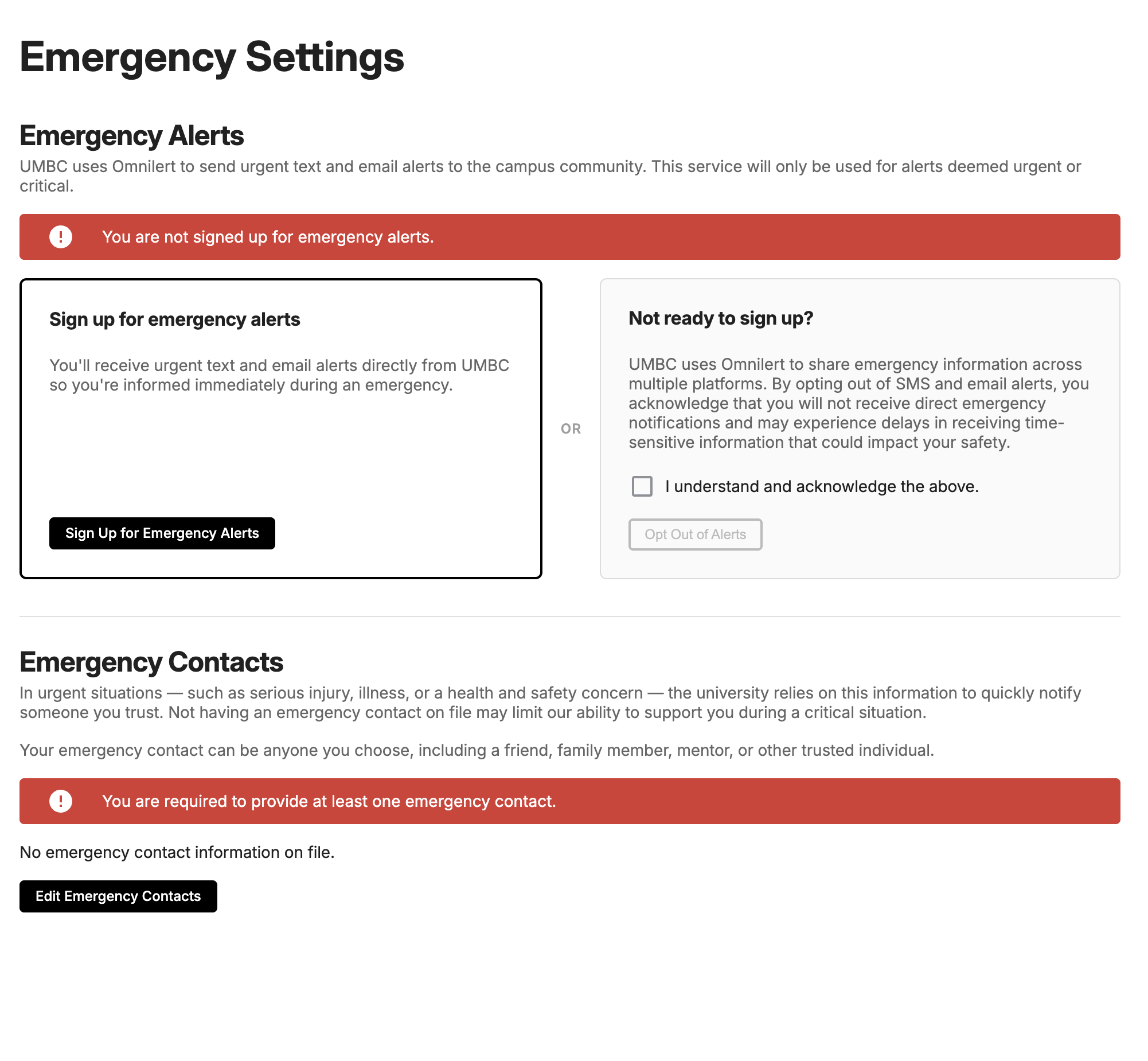 Emergency Alerts: If you haven't signed up, you’ll see a prompt to join.
-
Emergency Contacts: If your contacts are missing, you'll see a reminder. This notification will remain active until a contact is added.
Take Action: Click the notification to go directly to your settings, or access them anytime by clicking your Profile Photo > Emergency. See “How do I update my Emergency Settings in myUMBC?” for more information about the page.
Please take a moment today to ensure your emergency alert enrollment is active and your emergency contacts are up to date.
If you have any issues, please contact the Technology Support Center via help.umbc.edu or by calling 410-455-3838.
]]>
DoIT has been working with the Division of Student Affairs to introduce a new, easy-to-use Emergency Settings page in myUMBC. The myUMBC Emergency Settings page integrates our campus-wide...
Inline Image
https://assets1-my.umbc.edu/system/shared/attachments/ac6cf784deafd497c7e9a42b2ed0f303/6a92a167/news/000/160/630/09ad6b97b47773d7ff7f499daf333174/mceclip0.png?1781719581
https://my3.my.umbc.edu/api/v0/pixel/news/160630/guest@my.umbc.edu/c32a7f9ba0d9c955da89549b18c8db10/api/pixel
myumbc
Division of Information Technology (DoIT)
https://my3.my.umbc.edu/groups/doit
https://assets2-my.umbc.edu/system/shared/avatars/groups/000/000/021/d27760c5de12c74b73faec8d0e631acf/xsmall.png?1727453227
https://assets2-my.umbc.edu/system/shared/avatars/groups/000/000/021/d27760c5de12c74b73faec8d0e631acf/original.JPG?1727453227
https://assets1-my.umbc.edu/system/shared/avatars/groups/000/000/021/d27760c5de12c74b73faec8d0e631acf/xxlarge.png?1727453227
https://assets3-my.umbc.edu/system/shared/avatars/groups/000/000/021/d27760c5de12c74b73faec8d0e631acf/xlarge.png?1727453227
https://assets2-my.umbc.edu/system/shared/avatars/groups/000/000/021/d27760c5de12c74b73faec8d0e631acf/large.png?1727453227
https://assets2-my.umbc.edu/system/shared/avatars/groups/000/000/021/d27760c5de12c74b73faec8d0e631acf/medium.png?1727453227
https://assets2-my.umbc.edu/system/shared/avatars/groups/000/000/021/d27760c5de12c74b73faec8d0e631acf/small.png?1727453227
https://assets2-my.umbc.edu/system/shared/avatars/groups/000/000/021/d27760c5de12c74b73faec8d0e631acf/xsmall.png?1727453227
https://assets4-my.umbc.edu/system/shared/avatars/groups/000/000/021/d27760c5de12c74b73faec8d0e631acf/xxsmall.png?1727453227
Division of Information Technology (DoIT)
0
0
true
Thu, 18 Jun 2026 13:00:00 -0400