AutoCAD
Page
edited by
Anna Sniadach
AutoCAD software is a worldwide standard in computer-aided design (CAD). More people use AutoCAD than any other CAD software. With AutoCAD you can efficiently create single drawings and deliver a coordinated set of drawings in a timely manner. New tools like the table object and tool palettes boost productivity, and the new Sheet Set Manager helps you control content across entire sets of related drawings, reducing the risk for errors. You can compose and collate sheet sets and share them with your project team using plots, eTransmit, or DWF files.
Version:
2011, 2012
Eligibility:
Faculty and Staff for professional use.
Platform:
Windows
System Requirements:
Autodesk Software System Requirments
License Type:
Stand-alone
Download:
Click here to download software
Licensed Components:
Autodesk Licensed Components
Installation Notes:
There are 2 installation options for this package.
You can place a workorder with the Technology Support Center to have an DoIT staff member install the software for you on a machine on campus
- You can download the ISO(s) above, and install it yourself.
Rate this Article
Was this helpful?
Yes
| No
| Correct or Suggest an Article
| Request Help


To be notified of version changes, "watch" the related software page.
]]>
Page edited by Anna Sniadach AutoCAD software is a worldwide standard in computer-aided design (CAD). More people use AutoCAD...
https://wiki.umbc.edu/display/faq/AutoCAD
https://my3.my.umbc.edu/api/v0/pixel/news/23236/guest@my.umbc.edu/9360ab3937a92047ad430660ae0adaf5/api/pixel
faq
UMBC FAQ
https://my3.my.umbc.edu/groups/retired-428
https://assets2-my.umbc.edu/images/avatars/group/1/xsmall.png?1790700049
https://assets3-my.umbc.edu/images/avatars/group/1/original.png?1790700049
https://assets4-my.umbc.edu/images/avatars/group/1/xxlarge.png?1790700049
https://assets4-my.umbc.edu/images/avatars/group/1/xlarge.png?1790700049
https://assets1-my.umbc.edu/images/avatars/group/1/large.png?1790700049
https://assets3-my.umbc.edu/images/avatars/group/1/medium.png?1790700049
https://assets2-my.umbc.edu/images/avatars/group/1/small.png?1790700049
https://assets2-my.umbc.edu/images/avatars/group/1/xsmall.png?1790700049
https://assets3-my.umbc.edu/images/avatars/group/1/xxsmall.png?1790700049
UMBC FAQ
0
0
true
Mon, 04 Feb 2013 08:06:31 -0500
Thu, 18 Jul 2013 11:38:53 -0400
How do I install SAS 9.3 on my Windows computer?
Page
edited by
Adrian Geiger
1) Check the System requirements on the SAS web site, for SAS Version 9.3 for Windows. Make sure you do no have any pending reboots, by restarting your PC.
2) Insert the SAS 9.3 Software Disk 1 into your CD drive. After inserting the disk you should receive an auto-run prompt to run Setup.exe, if you do not receive a prompt you will need to browse to the file on Software Disk 1 by opening your disk drive, typically at "D:\", and double-clicking on Setup.exe.

3) Wait for the SAS Development Wizard to load, this can take some time.

4) Select your language, in this guide we will use English, and click OK.

5) Select "Create or Add to SAS Software Depot" and click Next.

6) Click Next to proceed with creating a SAS 9.3 installation depot.

7) Leave the default options selected and click Next to proceed.

8) Click Next to confirm the location where the SAS 9.3 installation depot will be created.

9) If prompted to create the directory, click Yes. Otherwise proceed to step 10.

10) Click Start to begin building your SAS 9.3 installation depot.

11) Be patient as building a SAS depot can take a considerable amount of time.

12) When prompted, insert SAS software disk 2, and then click OK to proceed with the creation of your SAS depot.

13) When prompted, insert SAS software disk 3, and then click OK to proceed with the creation of your SAS depot.

14) When prompted, insert SAS software disk 4, and then click OK to proceed with the creation of your SAS depot.

15) Click Next to proceed.

16) Click Finish to complete the creation of your SAS software depot.

17) Browse to the SAS software depot you just created, it will be "C:\SAS Software Depot" unless you chose another location in the earlier setup. Before installing, make sure the most current license file available from http://www.umbc.edu/downloads/SAS/ is in the "sid_files" folder in your SAS depot. To be sure, download the current license file from myUMBC, and place it in the "sid_files" folder. Then double-click on setup.exe to begin installing SAS.

18) Be patient while the SAS deployment Wizard starts.

19) Select your language, in this guide we will use English, and click OK.

20) Select "Install SAS Software" and click Next to proceed.

21) Click Next to install SAS in the default directory.

22) Select "Install Additional Software" and click Next to proceed.

23) Check the boxes for "SAS Enterprise Guide", "SAS Foundation", and "SAS Foundation Services". Then click Next to proceed.

24) Click Next to proceed.

25) Click Next to proceed.

26) Click Next to proceed.

27) Click Next to Proceed.

28) Click Next to proceed.

29) Be patient while SAS prepares installation data.

30) Click Next to Proceed.

31) Click Start to begin installing SAS.

32) SAS installation may take a considerable amount of time.

33) Click Next to proceed.

34) Click Next to proceed.

35) Click Finish to complete your successful SAS installation.

Rate this Article
Was this helpful?
Yes
| No
| Correct or Suggest an Article
| Request Help
]]>
Page edited by Adrian Geiger 1) Check the System requirements on the SAS web site, for SAS Version 9.3 for Windows. Make sure you...
https://wiki.umbc.edu/pages/viewpage.action?pageId=33850573
https://my3.my.umbc.edu/api/v0/pixel/news/23237/guest@my.umbc.edu/b7212be7e1c643eb9488a388bc0f6de2/api/pixel
faq
UMBC FAQ
https://my3.my.umbc.edu/groups/retired-428
https://assets2-my.umbc.edu/images/avatars/group/1/xsmall.png?1790700049
https://assets3-my.umbc.edu/images/avatars/group/1/original.png?1790700049
https://assets4-my.umbc.edu/images/avatars/group/1/xxlarge.png?1790700049
https://assets4-my.umbc.edu/images/avatars/group/1/xlarge.png?1790700049
https://assets1-my.umbc.edu/images/avatars/group/1/large.png?1790700049
https://assets3-my.umbc.edu/images/avatars/group/1/medium.png?1790700049
https://assets2-my.umbc.edu/images/avatars/group/1/small.png?1790700049
https://assets2-my.umbc.edu/images/avatars/group/1/xsmall.png?1790700049
https://assets3-my.umbc.edu/images/avatars/group/1/xxsmall.png?1790700049
UMBC FAQ
0
0
true
Mon, 04 Feb 2013 08:01:20 -0500
Wed, 20 Feb 2013 14:49:15 -0500
How do I install SAS 9.2 on my Windows computer?
Page
edited by
Adrian Geiger
|
1) Before installing SAS 9.2 please do all of the following, check the System requirements on the SAS web site for SAS Version 9.2 for Windowsand make sure your PC meets them, close ALL other Windows applications including virus-scanning programs.
2) Insert the SAS 9.2 Software Disk 1 into your CD drive. After inserting the disk you should receive an auto-run prompt to run Setup.exe, if you do not receive a prompt you will need to browse to the file on Software Disk 1 by opening your disk drive, typically at D:\, and double-clicking on Setup.exe.
3) Click OK when prompted to choose a language in which to run the SAS 9.2 Installer.

4) After a brief load time, click Next to begin building the SAS9.2 Installation Depot.

5) Click Next to specify the path to the SAS9.2 Installation Depot directory.

6) Click Yes if prompted to create the SAS9.2 Installation Depot directory.

7) Click Start to begin building the SAS9.2 Installation Depot.

8) When prompted for SAS Software Disk 2, insert the disk and click OK to continue building the SAS 9.2 Installation Depot.

9) When prompted for SAS Software Disk 3, insert the disk and click OK to continue building the SAS 9.2 Installation Depot.

10) When prompted for SAS Software Disk 4, insert the disk and click OK to continue building the SAS 9.2 Installation Depot.
11) Click Next to proceed with creating the SAS 9.2 Installation Depot.

12) Click Finish to complete building the SAS9.2 Installation Depot.

13) Browse into the SAS Installation Depot, located by default at C:\SAS Software Depot, and place the most current SAS license file for your operating system in the folder called "sid_files".

14) To start SAS9.2 Installation setup , and double-click on Setup.exe.

15) Click OK when prompted to choose a language in which to run the SAS 9.2 Installer.

16) Select Install SAS Software and click Next to proceed with installation setup.

17) Click Next to specify the directory in which SAS will be installed.

18) If you are installing SAS9.2 on top of a previous version of SAS click Yes to continue, if you are creating a fresh installation of SAS proceed to step 18.

19) Select Install Additional Software and click Next to proceed with installation setup.

20) From the list of products select SAS Enterprise Guide and SAS Foundation and click Next to continue.

21) Click Next to continue with Installation setup.

22) Click Next to continue with Installation setup.

23) Click Start to begin SAS Installation.

24) Click Next to proceed into the SAS System Requirements wizard.

25) Click Next to proceed with the SAS System Requirements wizard.

26) Click Finish to complete the SAS system requirements wizard.

27) Click Next to continue when files are finished copying.

28) Click Next to proceed to installation completion.

29) Click Finish to complete SAS9.2 Installation.

|
Rate this Article
Was this helpful?
Yes
| No
| Correct or Suggest an Article
| Request Help
]]>
Page edited by Adrian Geiger 1) Before installing SAS 9.2 please do all of the following, check the System requirements on the...
https://wiki.umbc.edu/pages/viewpage.action?pageId=33850570
https://my3.my.umbc.edu/api/v0/pixel/news/23238/guest@my.umbc.edu/83dcef50c227d8827b16afe29528fef9/api/pixel
faq
UMBC FAQ
https://my3.my.umbc.edu/groups/retired-428
https://assets2-my.umbc.edu/images/avatars/group/1/xsmall.png?1790700049
https://assets3-my.umbc.edu/images/avatars/group/1/original.png?1790700049
https://assets4-my.umbc.edu/images/avatars/group/1/xxlarge.png?1790700049
https://assets4-my.umbc.edu/images/avatars/group/1/xlarge.png?1790700049
https://assets1-my.umbc.edu/images/avatars/group/1/large.png?1790700049
https://assets3-my.umbc.edu/images/avatars/group/1/medium.png?1790700049
https://assets2-my.umbc.edu/images/avatars/group/1/small.png?1790700049
https://assets2-my.umbc.edu/images/avatars/group/1/xsmall.png?1790700049
https://assets3-my.umbc.edu/images/avatars/group/1/xxsmall.png?1790700049
UMBC FAQ
0
0
true
Mon, 04 Feb 2013 08:00:07 -0500
Wed, 20 Feb 2013 15:26:36 -0500
Big Ideas in the Big Apple
Five years since the financial meltdown, we look at New York City's blossoming startup scene.
 ]]>
Five years since the financial meltdown, we look at New York City's blossoming startup scene.
http://feedproxy.google.com/~r/entrepreneur/startingabusiness/~3/QKqX0ctBFAQ/story01.htm
https://my3.my.umbc.edu/api/v0/pixel/news/23962/guest@my.umbc.edu/34e5e5ac43650c82454dd55419c62480/api/pixel
Alex. Brown Center for Entrepreneurship
https://my3.my.umbc.edu/groups/entrepreneurship
https://assets2-my.umbc.edu/system/shared/avatars/groups/000/000/092/53c03b106bdc6e19e4bf0a41b5a37add/xsmall.png?1771000363
https://assets3-my.umbc.edu/system/shared/avatars/groups/000/000/092/53c03b106bdc6e19e4bf0a41b5a37add/original.jpg?1771000363
https://assets2-my.umbc.edu/system/shared/avatars/groups/000/000/092/53c03b106bdc6e19e4bf0a41b5a37add/xxlarge.png?1771000363
https://assets1-my.umbc.edu/system/shared/avatars/groups/000/000/092/53c03b106bdc6e19e4bf0a41b5a37add/xlarge.png?1771000363
https://assets4-my.umbc.edu/system/shared/avatars/groups/000/000/092/53c03b106bdc6e19e4bf0a41b5a37add/large.png?1771000363
https://assets1-my.umbc.edu/system/shared/avatars/groups/000/000/092/53c03b106bdc6e19e4bf0a41b5a37add/medium.png?1771000363
https://assets3-my.umbc.edu/system/shared/avatars/groups/000/000/092/53c03b106bdc6e19e4bf0a41b5a37add/small.png?1771000363
https://assets2-my.umbc.edu/system/shared/avatars/groups/000/000/092/53c03b106bdc6e19e4bf0a41b5a37add/xsmall.png?1771000363
https://assets3-my.umbc.edu/system/shared/avatars/groups/000/000/092/53c03b106bdc6e19e4bf0a41b5a37add/xxsmall.png?1771000363
The Alex. Brown Center for Entrepreneurship
0
0
true
Mon, 04 Feb 2013 08:00:00 -0500
How do I install SAS 9.2 on my Windows computer?
]]>
Five years since the financial meltdown, we look at New York City's blossoming startup scene.
http://feedproxy.google.com/~r/entrepreneur/startingabusiness/~3/QKqX0ctBFAQ/story01.htm
https://my3.my.umbc.edu/api/v0/pixel/news/23962/guest@my.umbc.edu/34e5e5ac43650c82454dd55419c62480/api/pixel
Alex. Brown Center for Entrepreneurship
https://my3.my.umbc.edu/groups/entrepreneurship
https://assets2-my.umbc.edu/system/shared/avatars/groups/000/000/092/53c03b106bdc6e19e4bf0a41b5a37add/xsmall.png?1771000363
https://assets3-my.umbc.edu/system/shared/avatars/groups/000/000/092/53c03b106bdc6e19e4bf0a41b5a37add/original.jpg?1771000363
https://assets2-my.umbc.edu/system/shared/avatars/groups/000/000/092/53c03b106bdc6e19e4bf0a41b5a37add/xxlarge.png?1771000363
https://assets1-my.umbc.edu/system/shared/avatars/groups/000/000/092/53c03b106bdc6e19e4bf0a41b5a37add/xlarge.png?1771000363
https://assets4-my.umbc.edu/system/shared/avatars/groups/000/000/092/53c03b106bdc6e19e4bf0a41b5a37add/large.png?1771000363
https://assets1-my.umbc.edu/system/shared/avatars/groups/000/000/092/53c03b106bdc6e19e4bf0a41b5a37add/medium.png?1771000363
https://assets3-my.umbc.edu/system/shared/avatars/groups/000/000/092/53c03b106bdc6e19e4bf0a41b5a37add/small.png?1771000363
https://assets2-my.umbc.edu/system/shared/avatars/groups/000/000/092/53c03b106bdc6e19e4bf0a41b5a37add/xsmall.png?1771000363
https://assets3-my.umbc.edu/system/shared/avatars/groups/000/000/092/53c03b106bdc6e19e4bf0a41b5a37add/xxsmall.png?1771000363
The Alex. Brown Center for Entrepreneurship
0
0
true
Mon, 04 Feb 2013 08:00:00 -0500
How do I install SAS 9.2 on my Windows computer?
Page
added by
Anna Sniadach
Tell Me
-
Check the System requirements on the SAS web site, for SAS Version 9.2 for Windows.
- The correct versions of Windows components and Internet Explorer Version 5 or higher MUST be installed on your PC. To verify that your system contains these and to install the required components:
- Start Windows.
- Close ALL other Windows applications including virus-scanning programs.
-
Insert the SAS 9.2 Software Disk 1 into your CD drive. After inserting the disk you should receive an auto-run prompt to run Setup.exe, if you do not receive a prompt you will need to browse to the file on Software Disk 1 by opening your disk drive, typically at D:\, and double-clicking on Setup.exe.

- Click OK when prompted to choose a language in which to run the SAS 9.2 Installer.

- After a brief load time, click Next to begin building the SAS9.2 Installation Depot.

- Click Next to specify the path to the SAS9.2 Installation Depot directory.

- Click Yes to create the SAS9.2 Installation Depot directory.

- Click Start to begin building the SAS9.2 Installation Depot.

- When prompted for SAS Software Disk 2, insert the disk and click OK to continue building the SAS 9.2 Installation Depot.

- When prompted for SAS Software Disk 3, insert the disk and click OK to continue building the SAS 9.2 Installation Depot, and then insert SAS Software Disk 4 when prompted.

- Click Next to proceed with creating the SAS 9.2 Installation Depot.

- Click Finish to complete building the SAS9.2 Installation Depot.

- Browse into the SAS Installation Depot, located by default at C:\SAS Software Depot, and place the most current SAS license file for your operating system in the folder called "sid_files".

- To start SAS9.2 Installation setup , and double-click on Setup.exe.

- Click OK when prompted to choose a language in which to run the SAS 9.2 Installer.

- Select Install SAS Software and click Next to proceed with installation setup.

- Click Next to specify the directory in which SAS will be installed.

- If you are installing SAS9.2 on top of a previous version of SAS click Yes to continue, if you are creating a fresh installation of SAS proceed to step 18.

- Select Install Additional Software and click Next to proceed with installation setup.

- From the list of products select SAS Enterprise Guide and SAS Foundation and click Nextto continue.

- Click Next to continue with Installation setup.

- Click Next to continue with Installation setup.

- Click Start to begin SAS Installation.

- Click Next to proceed into the SAS System Requirements wizard.

- Click Next to proceed with the SAS System Requirements wizard.

- Click Finish to complete the SAS system requirements wizard.

- Click Next to continue when files are finished copying.

- Click Next to proceed to installation completion.

- Click Finish to complete SAS9.2 Installation.

|
Rate this Article
Was this helpful?
Yes
| No
| Correct or Suggest an Article
| Request Help
]]>
Page added by Anna Sniadach Tell Me Check the System requirements on the SAS web site, for SAS Version 9.2 for Windows. The...
https://wiki.umbc.edu/pages/viewpage.action?pageId=33850571
https://my3.my.umbc.edu/api/v0/pixel/news/23232/guest@my.umbc.edu/24dccc88995a075b7b7d64e7651b4b68/api/pixel
faq
UMBC FAQ
https://my3.my.umbc.edu/groups/retired-428
https://assets2-my.umbc.edu/images/avatars/group/1/xsmall.png?1790700049
https://assets3-my.umbc.edu/images/avatars/group/1/original.png?1790700049
https://assets4-my.umbc.edu/images/avatars/group/1/xxlarge.png?1790700049
https://assets4-my.umbc.edu/images/avatars/group/1/xlarge.png?1790700049
https://assets1-my.umbc.edu/images/avatars/group/1/large.png?1790700049
https://assets3-my.umbc.edu/images/avatars/group/1/medium.png?1790700049
https://assets2-my.umbc.edu/images/avatars/group/1/small.png?1790700049
https://assets2-my.umbc.edu/images/avatars/group/1/xsmall.png?1790700049
https://assets3-my.umbc.edu/images/avatars/group/1/xxsmall.png?1790700049
UMBC FAQ
0
0
true
Mon, 04 Feb 2013 07:59:20 -0500
Case Study: Flat World Knowledge

Jeff Shelstad thought he had created a better way to publish textbooks. Just one problem: getting college kids to pay.
The Backstory
As an executive at textbook publisher Pearson Education, Jeff Shelstad saw an industry stuck in the past. High production costs drove up the prices of college textbooks. To preserve sales, publishers released new editions often, making it difficult for instructors to keep up. And instructors had limited flexibility to adapt texts for their courses: If the books omitted relevant content, instructors often had to assign supplementary texts, further inflating students' bills.
So in 2007, Shelstad and his Pearson colleague Eric Frank co-founded Flat World Knowledge in Irvington, New York. Shelstad sought to make textbooks affordable for students and customizable for teachers. He started by making all of its textbooks available digitally. Using the company's online platform, instructors could edit and remix the books' content, choose among versions, and move to new editions on their own schedules.
Flat World was well placed to address an emerging movement in higher education: open educational resources, or OER. Institutions had begun publishing instructional content that was free to use, adapt, and distribute. But the quality of many OER materials was untested. Flat World's textbooks, on the other hand, were peer reviewed, lending added credibility.
Flat World made basic editions of its textbooks available for free on its website and offered hard copies starting at $30, a fraction of the price of most college textbooks. It also sold downloadable mobile versions. The company raised $10 million in 2009. A year and a half later, Flat World's books had been adopted for more than 1,000 college courses nationwide.
The Problem
Shelstad, the company's CEO, had long suspected that offering textbooks online for free would be a gamble and that many students would simply rely on the free versions rather than pay for the physical books or the mobile versions. But a significant number of students, it turned out, preferred print copies of their textbooks--and were willing to pay for them. In Flat World's first two years, about 40 percent of the company's student customers opted for paid versions of its products.
By 2011, Flat World seemed poised for strong growth. By January of that year, the company had raised an additional $15 million from investors, including Bertelsmann Digital Media Investments and Bessemer Venture Partners, to fund the publication of new titles in additional subjects. Three months later, Random House invested $3 million.
But as the year progressed, Flat World's share of paying customers began to decline. More students were using digital textbooks than in past years, but few of them chose to purchase the downloadable e-books. Instead, most accessed the free versions online. Plus, as print copies of Flat World's textbooks began to enter the used-book market, students could buy them from resellers at a lower cost. By December, only about a quarter of students who accessed the company's textbooks were paying customers.
More students were using Flat World's textbooks, but the company's revenue per customer was dropping. Shelstad knew he had to entice more students to pay for the company's products. "We were going the wrong way," he says, "and we needed to fix it."
The Decision
Flat World began efforts to convert more students into paying customers. In July 2012, the company launched the online $20 Study Pass, which included highlighting and note taking, as well as a supplementary study guide. But by September, only 5 percent of students had purchased it.
Shelstad had an additional concern. Through an institutional licensing program, some students bought textbooks through their schools rather than via Flat World's website. The institutions paid Flat World a fee. Those schools were, in essence, "subsidizing those who chose free," he says. "I felt that making our books affordable across the board was more appropriate."
In other words, he had decided it was time to erect a paywall. That, however, could affect Flat World's relationship with schools that adopted the company's textbooks because of the free access. Further, a shift to a paywall could jeopardize Flat World's open-publishing license, preventing instructors from collaborating.
Ultimately, Shelstad decided that Flat World's business would never be sound unless all students paid. In November 2012, the company announced that it would end free access to online textbooks in January--a move it billed as "free to fair." At a minimum, students would have to purchase the Study Pass. They could also choose to upgrade to products like a $50 so-called VIP Pass to access Flat World's print and online textbooks.
The Aftermath
Some instructors were supportive. Even at $20 to $50, they reasoned, Flat World's textbooks remained much more affordable than those from other publishers.
But others felt blindsided by Flat World's announcement. Instructors who had used Flat World's textbooks specifically for open education initiatives worried about restricted collaboration. "If it's behind a paywall, it's no longer open--that's the bottom line," says Geoff Cain, director of distance education at the College of the Redwoods in Eureka, California. "It feels to a lot of people like a bait and switch."
Shelstad believes Flat World, whose textbooks are now used in around 3,800 courses, has garnered enough goodwill to remain on solid footing. The company has resolved that instructors will still be able to revise textbooks for their own use, though it's not clear yet whether they will be able to collaborate. The company is also looking to expand the licensing program.
The shift in direction triggered management changes. In December, the board named as CEO Christopher Etesse, previously a vice president at the educational technology company Blackboard. Shelstad will remain with the company, and he remains confident in Flat World's mission. "I think the changes are going to have a positive impact for institutions, for authors, as well as the bottom line," he says.
***
The Experts Say...
My Concern Is the Long Term
The key in open-source software is galvanizing a whole community to bear the cost of developing a product. But Flat World used a traditional approach to authorship, and it locked its content into its platform. I think in the short term, Flat World will get a bump in revenue. But my concern is that in the long term, it will be just another publisher. Every publisher is developing a platform to modify books now. And over the long term, the cost of books will drop, so that distinction will fade, too.
--Victor Vuchic
Program officer in education, William and Flora Hewlett Foundation
Consider All the Stakeholders
Even mission-based businesses still have to create business models that work. I suspect that setting up licensing deals with schools to provide textbooks at low cost will ultimately work well. Some critics of the company seem to be taking one stakeholder's point of view, that of the student or the school, but the company has to take into account all of its stakeholders: authors, investors, employees, suppliers, schools, and students. Any decision driven by only one or two of those groups won't be a good one.
--Steve Piersanti
President, Berrett-Koehler Publishers
Make Your Model Clear
The fact that something is initially offered for free doesn't mean it will always be free. The key is to make your business model clear to customers up front. Particularly in higher education, there are some people who don't embrace the nature of commercial enterprises, so some of the noise is not unusual. But if it is a small group of people complaining, then I don't think it should be a big concern.
--Steve Murray
Partner, Softbank Capital
 ]]>
Jeff Shelstad thought he had created a better way to publish textbooks. Just one problem: getting college kids to pay. The Backstory As an executive at textbook publisher Pearson Education, Jeff...
http://feedproxy.google.com/~r/inc/channel/start-up/~3/teNEcRCQlkk/case-study-iffy-business-models.html
https://my3.my.umbc.edu/api/v0/pixel/news/24012/guest@my.umbc.edu/d3bad73cbaccce430a032c69b4482c93/api/pixel
Alex. Brown Center for Entrepreneurship
https://my3.my.umbc.edu/groups/entrepreneurship
https://assets2-my.umbc.edu/system/shared/avatars/groups/000/000/092/53c03b106bdc6e19e4bf0a41b5a37add/xsmall.png?1771000363
https://assets3-my.umbc.edu/system/shared/avatars/groups/000/000/092/53c03b106bdc6e19e4bf0a41b5a37add/original.jpg?1771000363
https://assets2-my.umbc.edu/system/shared/avatars/groups/000/000/092/53c03b106bdc6e19e4bf0a41b5a37add/xxlarge.png?1771000363
https://assets1-my.umbc.edu/system/shared/avatars/groups/000/000/092/53c03b106bdc6e19e4bf0a41b5a37add/xlarge.png?1771000363
https://assets4-my.umbc.edu/system/shared/avatars/groups/000/000/092/53c03b106bdc6e19e4bf0a41b5a37add/large.png?1771000363
https://assets1-my.umbc.edu/system/shared/avatars/groups/000/000/092/53c03b106bdc6e19e4bf0a41b5a37add/medium.png?1771000363
https://assets3-my.umbc.edu/system/shared/avatars/groups/000/000/092/53c03b106bdc6e19e4bf0a41b5a37add/small.png?1771000363
https://assets2-my.umbc.edu/system/shared/avatars/groups/000/000/092/53c03b106bdc6e19e4bf0a41b5a37add/xsmall.png?1771000363
https://assets3-my.umbc.edu/system/shared/avatars/groups/000/000/092/53c03b106bdc6e19e4bf0a41b5a37add/xxsmall.png?1771000363
The Alex. Brown Center for Entrepreneurship
0
0
true
Mon, 04 Feb 2013 07:00:00 -0500
Lessons We Learned from Our Biggest UX and Design Mistakes
]]>
Jeff Shelstad thought he had created a better way to publish textbooks. Just one problem: getting college kids to pay. The Backstory As an executive at textbook publisher Pearson Education, Jeff...
http://feedproxy.google.com/~r/inc/channel/start-up/~3/teNEcRCQlkk/case-study-iffy-business-models.html
https://my3.my.umbc.edu/api/v0/pixel/news/24012/guest@my.umbc.edu/d3bad73cbaccce430a032c69b4482c93/api/pixel
Alex. Brown Center for Entrepreneurship
https://my3.my.umbc.edu/groups/entrepreneurship
https://assets2-my.umbc.edu/system/shared/avatars/groups/000/000/092/53c03b106bdc6e19e4bf0a41b5a37add/xsmall.png?1771000363
https://assets3-my.umbc.edu/system/shared/avatars/groups/000/000/092/53c03b106bdc6e19e4bf0a41b5a37add/original.jpg?1771000363
https://assets2-my.umbc.edu/system/shared/avatars/groups/000/000/092/53c03b106bdc6e19e4bf0a41b5a37add/xxlarge.png?1771000363
https://assets1-my.umbc.edu/system/shared/avatars/groups/000/000/092/53c03b106bdc6e19e4bf0a41b5a37add/xlarge.png?1771000363
https://assets4-my.umbc.edu/system/shared/avatars/groups/000/000/092/53c03b106bdc6e19e4bf0a41b5a37add/large.png?1771000363
https://assets1-my.umbc.edu/system/shared/avatars/groups/000/000/092/53c03b106bdc6e19e4bf0a41b5a37add/medium.png?1771000363
https://assets3-my.umbc.edu/system/shared/avatars/groups/000/000/092/53c03b106bdc6e19e4bf0a41b5a37add/small.png?1771000363
https://assets2-my.umbc.edu/system/shared/avatars/groups/000/000/092/53c03b106bdc6e19e4bf0a41b5a37add/xsmall.png?1771000363
https://assets3-my.umbc.edu/system/shared/avatars/groups/000/000/092/53c03b106bdc6e19e4bf0a41b5a37add/xxsmall.png?1771000363
The Alex. Brown Center for Entrepreneurship
0
0
true
Mon, 04 Feb 2013 07:00:00 -0500
Lessons We Learned from Our Biggest UX and Design Mistakes

Advertise here with BSA

We’ve finally hit the 500,000-user mark at Buffer, a product that helps you share on your social media networks more efficiently. About two years ago when we started on our path to building Buffer, we knew we’d be meeting obstacles and making mistakes along the way.
One of the main things we’ve kept in mind is that making mistakes is unavoidable and that if we choose to learn from them, they’ll be helpful in giving us good guidance on how to move forward more effectively.
And I believe that it’s partly because of these mistakes that we were able to get to where we are today.
The Experience That Shaped How We Build Our Product
Before I discuss the biggest lessons we learned from some of our UX and design mistakes, I want to talk about one of our primary product development principles:
"Validate first, code later"
Let me tell you how this came about.
When the idea of Buffer for building a smarter way to post to Twitter and other social networks came about, our founder Joel Gascoigne immediately started coding instead of first validating his idea (which is how he used to typically approach things).
A few minutes into his coding session, he realized that that wasn’t the way to go.
So he tried something else.
What he did was to put up a landing page as if his product already existed, even though he hadn’t finished everything yet.
He then went ahead and spread the link of his site across Twitter.
People whose interest got piqued would click on a button on the landing page to sign up for an account. They were then presented with another web page that said Buffer wasn’t finished yet and asked the interested user to leave his/her email address so that he/she can be get an email as soon as Buffer launched.
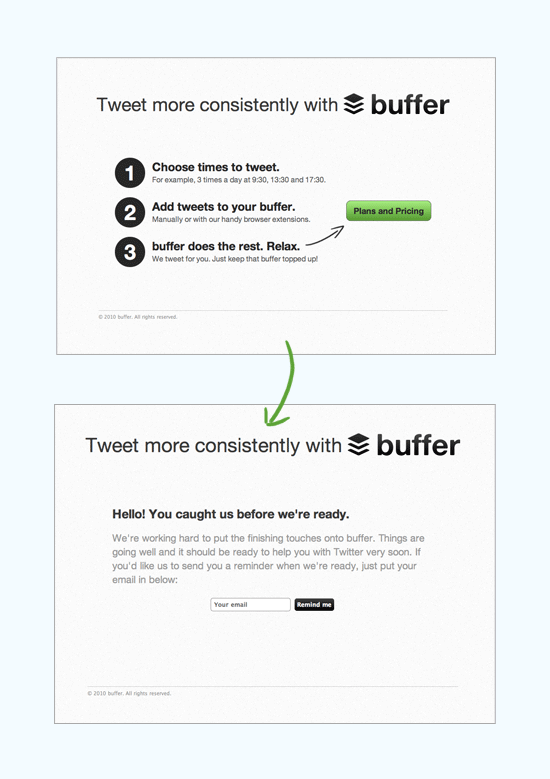
This strategy worked out quite well and we got our first paying customer within 7 weeks of coming up with the idea.
Three key product development principles were created from this experience:
- Keep the first version of a feature or product as minimal as possible.
- Be prepared for a long journey with lots of course-redirection.
- Turn any idea for a feature into a hypothesis that first needs validation from the user.
Now that you know a little bit about our product development principles, the following lessons that we learned will make a bit more sense.
Lesson 1: User Flows Should Focus on Retention, Not Revenue
A key user experience (UX) lesson that we discovered early on was that we needed to concentrate on keeping our customers rather than generating revenue.
This is how we learned this lesson. Our initial landing page’s user flow was as follows:
- When you first see our landing page and click on the sign-up button, we would show you a "subscription plans and pricing" page.
- From there, you would be required to choose either the "Free" plan or one of our paid plans.
- After you’ve picked the right plan for you, you would be able to sign up by providing your details (e.g., your name, email address, and so forth).
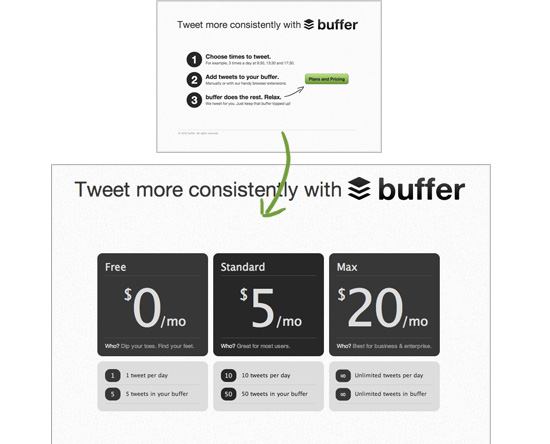
With this user flow, the rate of people choosing one of the paid plans upon signing up is high, thus allowing us to generate revenue early on.
However, we quickly learned that users who picked to pay for the product before getting the chance to use it sent our churn rate through the roof.
Why did this happen?
We found out that people would pay, but then they wouldn’t even start to use Buffer, and eventually they’d cancel their subscription.
So we changed our sign-up user flow and philosophy of acquiring users. We decided to say to ourselves, "Let’s get the person to start using the product first so that they can experience first-hand the value of our product, which will hopefully encourage them to upgrade to one of the paid subscription plans."
That worked out a lot better for us.
As a result, the user flow through our website is incredibly more seamless now:

As a result of this user flow redesign, two important things happened:
-
More people signed up because we didn’t dilute the funnel with a pricing page as an interstitial.
-
More people upgraded over time because they started to actually use the product, find value in it, and stick with us.
Since then, we’ve made many more product changes that give out more free features, and our core product features are still free. Only after we’re sure you’ve really seen lots of value from using Buffer that we would encourage you to upgrade to a paid plan.
Making user flows that focus on user-retention was an important discovery for us.
Lesson 2: Social Sign-in is Better Than Email Sign-in
After dozens of failed A/B tests to improve the conversion rates of our landing page, we came up with the idea to enable social sign-in (i.e., signing up for a Buffer account and logging in using your Twitter, Facebook or LinkedIn account).
After all, Buffer is for posting on Twitter, Facebook and LinkedIn so it only seemed logical that our potential users would be able to quickly and conveniently sign up using one of their existing accounts.
For comparative purposes, below is our initial landing page that would let you sign up with your email and a password:

Our change from the email sign-in to social sign-in is one of our biggest growth hacks, allowing us to eventually increase sign-ups by 50%. And around the time of this sign-in switch, we went from 500 daily sign-ups to 800 daily sign-ups practically overnight.
Lesson 3: Test All of Your Assumptions Early
Let me tell you a story about how we failed miserably with a new browser extension redesign idea.
One of the essential parts to Buffer is our browser extension for Chrome, Firefox and all other major browsers. We know that if you’re a user and use the extension, you’ll have the best experience with the product. Sharing from any web page and easily adding everything to your "buffer" to share on Twitter, Facebook and LinkedIn emerged as the most powerful use-case.
So it was only natural for us to focus on this element of the product and try our very best to improve it, as we clearly had some ideas on how we could make it better.
But when we got going with the production of a better browser extension, it seemed like we fell back into our old habits and made the same mistakes we knew we should be avoiding.
Here’s the sequence of how we (incorrectly) approached building our new extension:
- We identified some issues with our existing browser extension and then we brainstormed on what we wanted to change.
- We spent a lot of time and resources to design and develop a fully-functional first version.
- We tested the first version late in the process and realized people were getting extremely confused when using it.
- We canned the new idea and never launched it.
This was the new layout of the browser extension that we never pushed to production:

Getting into the habit of testing every single assumption you have as early as possible is something we now have seared deeply into our brains since that failure.
To make things right, this is now how we approach building new products and features:
- Identify issues with the existing product and brainstorm what you might want to change.
- Talk to users about whether they actually have the same issues.
- After validating it in a discussion with our users, quickly build wireframes or a simple prototype that doesn’t take longer than 1-2 days to produce.
- Talk to users again and see how they interact with your prototype.
- Iterate further to a somewhat usable feature/product that you can show to more users.
- Track engagement/growth/revenue metrics and talk to users again about their experience.
Lesson 4: Be Clear with User Interface Labels
The last lesson that I want to share with you is something that I’ve been thinking about for quite a while: It’s the issue of being clear with your labels, buttons, help text, etc. versus being clever with them.
Des Traynor from Intercom defined this problem incredibly well in an article:
Situation: You’ve built a great feature that solves a real problem that you know your users have. They’re not using it though. Usually, it’s because they haven’t seen it, or they saw it and didn’t know what it did.
That situation is something we continue to face.
The key example I wanted to describe here is the following: Inside Buffer, you can connect multiple social accounts together so you can post to them all from one location, e.g., you sign up or login with your Twitter account but you also want to connect your Facebook and LinkedIn account to Buffer to make posting from one place easier.
What it used to look like was this:

We thought to ourselves that having a clever "plus" (+) sign icon will indicate to people that that’s the way to add your other social network accounts.
And yet, we repeatedly received emails from our users asking us if there was a way to connect their Facebook or LinkedIn account in Buffer.
So what we did was to change various aspects of the "connect" button by making it a placeholder icon, using a bigger plus sign, and many other design tweaks.
What was the eventual design solution?
The solution was simple: Using the text "connect more accounts" in plain, written words, which is a lot clearer and more effective than having (what we thought was) a cleverly devised icon to represent this UI task.
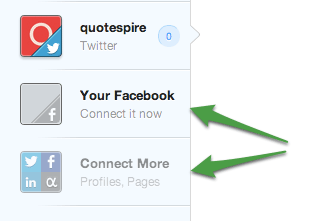
We learned that picking the clear solution over the clever solution — even though the former might not be as pretty or as unique or as cool — is always what’s better for the user.
Conclusion: Everything Is a Hypothesis That Needs to be Validated
We believe that our company and our app is still in its early stages, so a lot of the design processes and methods we have are still very experimental.
The concept of not being attached to a single idea and treating every design or feature iteration as a hypothesis that needs validation is the overall biggest thing we’ve learned.
We plan to build many more features that people will hopefully love. And we also expect to build many more that we’ll have to throw away.
We think this way of thinking will give us the biggest potential for building something our users truly want.
Related Content
About the Authors
 Leo Widrich is co-founder of Buffer, a better way to post to Twitter, Facebook and LinkedIn. He also blogs about insights on lifehacks, business and productivity on the Buffer blog. You can say "hello" to him on Twitter @leowid (he is a super nice guy).
 Tom Moor is co-founder at Buffer, a smarter way to share on Social Media. At Buffer Tom leads design and UX, constantly trying to make the interface easier to use, whilst focusing on the little details. Follow him @tommoor on Twitter for more great chats on startups and design.
]]>
Advertise here with BSA We’ve finally hit the 500,000-user mark at Buffer, a product that helps you share on your social media networks more efficiently. About two years ago when we started...
http://feedproxy.google.com/~r/SixRevisions/~3/a2Lg8hWbtDY/
https://my3.my.umbc.edu/api/v0/pixel/news/26032/guest@my.umbc.edu/651b67b3abd689308255e14e21953d1d/api/pixel
css
database
design
development
html
javascript
mysql
sql
user-interface
web
Web Developer - Build Group
https://my3.my.umbc.edu/groups/retired-583
https://assets3-my.umbc.edu/system/shared/avatars/groups/000/000/583/fc60f5d7abc2e080599bb6dc465db54d/xsmall.png?1363101197
https://assets4-my.umbc.edu/system/shared/avatars/groups/000/000/583/fc60f5d7abc2e080599bb6dc465db54d/original.jpg?1363101197
https://assets4-my.umbc.edu/system/shared/avatars/groups/000/000/583/fc60f5d7abc2e080599bb6dc465db54d/xxlarge.png?1363101197
https://assets4-my.umbc.edu/system/shared/avatars/groups/000/000/583/fc60f5d7abc2e080599bb6dc465db54d/xlarge.png?1363101197
https://assets3-my.umbc.edu/system/shared/avatars/groups/000/000/583/fc60f5d7abc2e080599bb6dc465db54d/large.png?1363101197
https://assets3-my.umbc.edu/system/shared/avatars/groups/000/000/583/fc60f5d7abc2e080599bb6dc465db54d/medium.png?1363101197
https://assets4-my.umbc.edu/system/shared/avatars/groups/000/000/583/fc60f5d7abc2e080599bb6dc465db54d/small.png?1363101197
https://assets3-my.umbc.edu/system/shared/avatars/groups/000/000/583/fc60f5d7abc2e080599bb6dc465db54d/xsmall.png?1363101197
https://assets4-my.umbc.edu/system/shared/avatars/groups/000/000/583/fc60f5d7abc2e080599bb6dc465db54d/xxsmall.png?1363101197
Web Developer - Build Group
0
0
true
Mon, 04 Feb 2013 06:20:04 -0500
Mon, 04 Feb 2013 06:20:04 -0500
What It Takes To Get In “Trending Startups” On AngelList

You’re always told of how AngelList is so awesome for people looking for prospective investors and a host of other things. Of course, they never tell you what they’re doing to get investments, and nothing seems to be trickling down your way. Looking for money is a tough deal, especially when you’ve already spent a sizeable wad of cash to get your project moving.
The only way to really get attention is to make yourself more visible. One of those ways involves getting listed in Angel List’s Trending Startups newsletter, a newsletter emailed to thousands of potential investors around the globe. If you could get in Trending Startups, it probably won’t be long before you get a message from a suit with a little red wagon full of cash. But how do you get there?
Lifting The Curtain: Understanding How AL Works
First off, people starting out don’t really understand the mechanics of AngelList. They just create a profile to “be there” and hopefully run into someone. AngelList, much like Twitter, bases itself on followership. The more followers you have, the more people will be comfortable with writing you a check. Now we raise the problem of getting some followers. Your profile isn’t going to just attract followers out of the blue.
Having A Profile To Brag About Is Important
To start off, your profile needs to be filled out. The startup’s profile should be complete with a list of advisors and team members. If you don’t have advisors, you should get out in the sun more and actually interact with the world around you. Hand your business card out to people at trade shows. If you’re not ready to hustle, your startup won’t be much more than an idea with a couple of broke people behind it. Not only does the startup’s profile need to be complete, but you also need your team (and yourself) to fill out their personal profiles.
Get Social
After all that’s done, start following friends on AngelList through its social platform. This gathers interest, and some of them will also follow your startup. Once you’re done clicking and pointing your mouse everywhere, you’re going to need to start using that keyboard. Type up a nice, short status update bragging about accomplishments that your startup has made once in awhile.
Getting the picture already? All you have to do is hustle and find people to follow you. Look at other profiles of startups appearing on the “Trending” list and try to see what they’re doing that you’re not.
What To Do After You Get Some Cash
Oh, and when an investor actually shows interest and hauls some money your way, add that to your “previous investors” list. Startups that get good followings and funds often appear on AngelList’s Trending Startups list. The more visible you make yourself, the more likely you are to get moving. This sometimes involves getting your eyes out of the monitor and make things happen the old school way by attending trade shows. As you let more people know about what you’re doing, some of them will want to show some interest. Also don’t forget that people won’t be likely to share your page unless they’re told to!
]]>
You’re always told of how AngelList is so awesome for people looking for prospective investors and a host of other things. Of course, they never tell you what they’re doing to get investments, and...
http://www.bootstrappist.com/archives/what-it-takes-to-get-in-trending-startups-on-angellist/
https://my3.my.umbc.edu/api/v0/pixel/news/23914/guest@my.umbc.edu/4d2af403ce79eec3a6b9ae5afb5cdd02/api/pixel
entrepreneurship
Alex. Brown Center for Entrepreneurship
https://my3.my.umbc.edu/groups/entrepreneurship
https://assets2-my.umbc.edu/system/shared/avatars/groups/000/000/092/53c03b106bdc6e19e4bf0a41b5a37add/xsmall.png?1771000363
https://assets3-my.umbc.edu/system/shared/avatars/groups/000/000/092/53c03b106bdc6e19e4bf0a41b5a37add/original.jpg?1771000363
https://assets2-my.umbc.edu/system/shared/avatars/groups/000/000/092/53c03b106bdc6e19e4bf0a41b5a37add/xxlarge.png?1771000363
https://assets1-my.umbc.edu/system/shared/avatars/groups/000/000/092/53c03b106bdc6e19e4bf0a41b5a37add/xlarge.png?1771000363
https://assets4-my.umbc.edu/system/shared/avatars/groups/000/000/092/53c03b106bdc6e19e4bf0a41b5a37add/large.png?1771000363
https://assets1-my.umbc.edu/system/shared/avatars/groups/000/000/092/53c03b106bdc6e19e4bf0a41b5a37add/medium.png?1771000363
https://assets3-my.umbc.edu/system/shared/avatars/groups/000/000/092/53c03b106bdc6e19e4bf0a41b5a37add/small.png?1771000363
https://assets2-my.umbc.edu/system/shared/avatars/groups/000/000/092/53c03b106bdc6e19e4bf0a41b5a37add/xsmall.png?1771000363
https://assets3-my.umbc.edu/system/shared/avatars/groups/000/000/092/53c03b106bdc6e19e4bf0a41b5a37add/xxsmall.png?1771000363
The Alex. Brown Center for Entrepreneurship
0
0
true
Mon, 04 Feb 2013 05:30:42 -0500
10 Questions to Ask Yourself When Testing a Business Idea
Need help trying to figure out if that great idea you're passionate about could become a successful business? Here's how to evaluate a potential winner.
 ]]>
Need help trying to figure out if that great idea you're passionate about could become a successful business? Here's how to evaluate a potential winner.
http://feedproxy.google.com/~r/entrepreneur/startingabusiness/~3/R_JWMV4w_dc/story01.htm
https://my3.my.umbc.edu/api/v0/pixel/news/23963/guest@my.umbc.edu/cbff578b53b962005b01b461469990e5/api/pixel
Alex. Brown Center for Entrepreneurship
https://my3.my.umbc.edu/groups/entrepreneurship
https://assets2-my.umbc.edu/system/shared/avatars/groups/000/000/092/53c03b106bdc6e19e4bf0a41b5a37add/xsmall.png?1771000363
https://assets3-my.umbc.edu/system/shared/avatars/groups/000/000/092/53c03b106bdc6e19e4bf0a41b5a37add/original.jpg?1771000363
https://assets2-my.umbc.edu/system/shared/avatars/groups/000/000/092/53c03b106bdc6e19e4bf0a41b5a37add/xxlarge.png?1771000363
https://assets1-my.umbc.edu/system/shared/avatars/groups/000/000/092/53c03b106bdc6e19e4bf0a41b5a37add/xlarge.png?1771000363
https://assets4-my.umbc.edu/system/shared/avatars/groups/000/000/092/53c03b106bdc6e19e4bf0a41b5a37add/large.png?1771000363
https://assets1-my.umbc.edu/system/shared/avatars/groups/000/000/092/53c03b106bdc6e19e4bf0a41b5a37add/medium.png?1771000363
https://assets3-my.umbc.edu/system/shared/avatars/groups/000/000/092/53c03b106bdc6e19e4bf0a41b5a37add/small.png?1771000363
https://assets2-my.umbc.edu/system/shared/avatars/groups/000/000/092/53c03b106bdc6e19e4bf0a41b5a37add/xsmall.png?1771000363
https://assets3-my.umbc.edu/system/shared/avatars/groups/000/000/092/53c03b106bdc6e19e4bf0a41b5a37add/xxsmall.png?1771000363
The Alex. Brown Center for Entrepreneurship
0
0
true
Mon, 04 Feb 2013 05:00:00 -0500
Brian Neller Named America East Player of the Week
Cambridge, Mass.- UMBC senior guard Brian Neller (Red Bank, N.J./Christian Brothers Acad.) has been named America East Conference Men's Basketball Player of the Week for games ending Feb. 3, 2013. Neller netted a heavily-contested 25-footer with 0.5 seconds to play to propel the Retrievers to a thrilling 68-67 victory over Maine at the RAC Arena on Sat., Feb. 2.
]]>
Cambridge, Mass.- UMBC senior guard Brian Neller (Red Bank, N.J./Christian Brothers Acad.) has been named America East Conference Men's Basketball Player of the Week for games ending Feb. 3, 2013....
http://www.umbcretrievers.com/release.asp?RELEASE_ID=7613
https://my3.my.umbc.edu/api/v0/pixel/news/23289/guest@my.umbc.edu/153d2ca593eecb5b2805b0b8cf6a8294/api/pixel
UMBC Athletics
https://my3.my.umbc.edu/groups/athletics
https://assets2-my.umbc.edu/system/shared/avatars/groups/000/000/009/69595c9b99f609d75fbb8232d9bd73d3/xsmall.png?1709304849
https://assets4-my.umbc.edu/system/shared/avatars/groups/000/000/009/69595c9b99f609d75fbb8232d9bd73d3/original.jpg?1709304849
https://assets3-my.umbc.edu/system/shared/avatars/groups/000/000/009/69595c9b99f609d75fbb8232d9bd73d3/xxlarge.png?1709304849
https://assets3-my.umbc.edu/system/shared/avatars/groups/000/000/009/69595c9b99f609d75fbb8232d9bd73d3/xlarge.png?1709304849
https://assets4-my.umbc.edu/system/shared/avatars/groups/000/000/009/69595c9b99f609d75fbb8232d9bd73d3/large.png?1709304849
https://assets4-my.umbc.edu/system/shared/avatars/groups/000/000/009/69595c9b99f609d75fbb8232d9bd73d3/medium.png?1709304849
https://assets1-my.umbc.edu/system/shared/avatars/groups/000/000/009/69595c9b99f609d75fbb8232d9bd73d3/small.png?1709304849
https://assets2-my.umbc.edu/system/shared/avatars/groups/000/000/009/69595c9b99f609d75fbb8232d9bd73d3/xsmall.png?1709304849
https://assets3-my.umbc.edu/system/shared/avatars/groups/000/000/009/69595c9b99f609d75fbb8232d9bd73d3/xxsmall.png?1709304849
UMBC Athletics
0
0
true
Mon, 04 Feb 2013 00:00:00 -0500
]]>
Need help trying to figure out if that great idea you're passionate about could become a successful business? Here's how to evaluate a potential winner.
http://feedproxy.google.com/~r/entrepreneur/startingabusiness/~3/R_JWMV4w_dc/story01.htm
https://my3.my.umbc.edu/api/v0/pixel/news/23963/guest@my.umbc.edu/cbff578b53b962005b01b461469990e5/api/pixel
Alex. Brown Center for Entrepreneurship
https://my3.my.umbc.edu/groups/entrepreneurship
https://assets2-my.umbc.edu/system/shared/avatars/groups/000/000/092/53c03b106bdc6e19e4bf0a41b5a37add/xsmall.png?1771000363
https://assets3-my.umbc.edu/system/shared/avatars/groups/000/000/092/53c03b106bdc6e19e4bf0a41b5a37add/original.jpg?1771000363
https://assets2-my.umbc.edu/system/shared/avatars/groups/000/000/092/53c03b106bdc6e19e4bf0a41b5a37add/xxlarge.png?1771000363
https://assets1-my.umbc.edu/system/shared/avatars/groups/000/000/092/53c03b106bdc6e19e4bf0a41b5a37add/xlarge.png?1771000363
https://assets4-my.umbc.edu/system/shared/avatars/groups/000/000/092/53c03b106bdc6e19e4bf0a41b5a37add/large.png?1771000363
https://assets1-my.umbc.edu/system/shared/avatars/groups/000/000/092/53c03b106bdc6e19e4bf0a41b5a37add/medium.png?1771000363
https://assets3-my.umbc.edu/system/shared/avatars/groups/000/000/092/53c03b106bdc6e19e4bf0a41b5a37add/small.png?1771000363
https://assets2-my.umbc.edu/system/shared/avatars/groups/000/000/092/53c03b106bdc6e19e4bf0a41b5a37add/xsmall.png?1771000363
https://assets3-my.umbc.edu/system/shared/avatars/groups/000/000/092/53c03b106bdc6e19e4bf0a41b5a37add/xxsmall.png?1771000363
The Alex. Brown Center for Entrepreneurship
0
0
true
Mon, 04 Feb 2013 05:00:00 -0500
Brian Neller Named America East Player of the Week
Cambridge, Mass.- UMBC senior guard Brian Neller (Red Bank, N.J./Christian Brothers Acad.) has been named America East Conference Men's Basketball Player of the Week for games ending Feb. 3, 2013. Neller netted a heavily-contested 25-footer with 0.5 seconds to play to propel the Retrievers to a thrilling 68-67 victory over Maine at the RAC Arena on Sat., Feb. 2.
]]>
Cambridge, Mass.- UMBC senior guard Brian Neller (Red Bank, N.J./Christian Brothers Acad.) has been named America East Conference Men's Basketball Player of the Week for games ending Feb. 3, 2013....
http://www.umbcretrievers.com/release.asp?RELEASE_ID=7613
https://my3.my.umbc.edu/api/v0/pixel/news/23289/guest@my.umbc.edu/153d2ca593eecb5b2805b0b8cf6a8294/api/pixel
UMBC Athletics
https://my3.my.umbc.edu/groups/athletics
https://assets2-my.umbc.edu/system/shared/avatars/groups/000/000/009/69595c9b99f609d75fbb8232d9bd73d3/xsmall.png?1709304849
https://assets4-my.umbc.edu/system/shared/avatars/groups/000/000/009/69595c9b99f609d75fbb8232d9bd73d3/original.jpg?1709304849
https://assets3-my.umbc.edu/system/shared/avatars/groups/000/000/009/69595c9b99f609d75fbb8232d9bd73d3/xxlarge.png?1709304849
https://assets3-my.umbc.edu/system/shared/avatars/groups/000/000/009/69595c9b99f609d75fbb8232d9bd73d3/xlarge.png?1709304849
https://assets4-my.umbc.edu/system/shared/avatars/groups/000/000/009/69595c9b99f609d75fbb8232d9bd73d3/large.png?1709304849
https://assets4-my.umbc.edu/system/shared/avatars/groups/000/000/009/69595c9b99f609d75fbb8232d9bd73d3/medium.png?1709304849
https://assets1-my.umbc.edu/system/shared/avatars/groups/000/000/009/69595c9b99f609d75fbb8232d9bd73d3/small.png?1709304849
https://assets2-my.umbc.edu/system/shared/avatars/groups/000/000/009/69595c9b99f609d75fbb8232d9bd73d3/xsmall.png?1709304849
https://assets3-my.umbc.edu/system/shared/avatars/groups/000/000/009/69595c9b99f609d75fbb8232d9bd73d3/xxsmall.png?1709304849
UMBC Athletics
0
0
true
Mon, 04 Feb 2013 00:00:00 -0500