July Update Brings Rubric Evaluation Report to Ultra Courses
Discussion descriptions, AI conversation timers, course favs
This month's Ultra update provides a new report that gives instructors class-wide rubric data at a glance, and a dedicated field that separates discussion context from prompt. Paired with clearer time guidelines for students working in AI Conversations, this update gives instructors sharper data and more control over how students engage with course activities.
Rubric Evaluation Report gives instructors a bird's-eye view of rubric performance across an entire class. Instructors can now run this report directly from the gradebook for any graded activity that has a rubric attached, aggregating data from every student submission into a single view. Instructors can see at a glance how students are performing against each criterion, making it easier to spot patterns, identify skills that need reteaching, and adjust instruction before the next assignment is due.
Image 1: Example of Rubric Statistics Report featuring bar chart comparing points possible against actual points
Discussions and Journals now include a dedicated Description field, giving instructors a clearer way to set the stage before students engage with an activity. Previously, the prompt appeared on the Course Content page and had to do double duty as both context and task. Now, instructors can use the new Description field to lay out expectations, background, or logistics, and reserve the prompt itself for the actual engagement question or task.
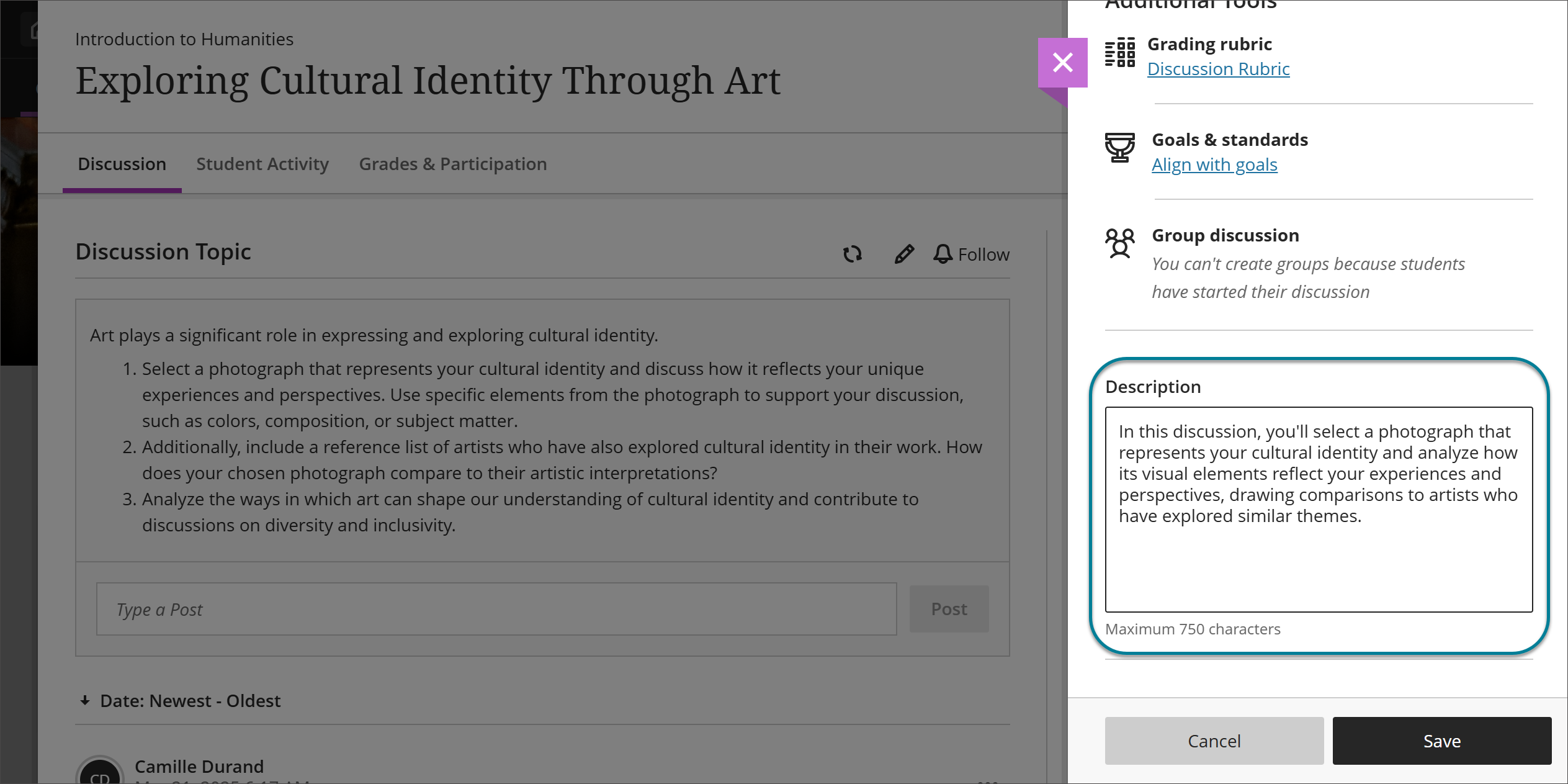 Image 2: Instructors can enter a description in the Description field for a Discussion.
With AI Conversations, instructors can now set a time limit on how long students spend in the activity. Two options are available, depending on how instructors want to structure the experience: instructors can time the assessment as a whole, or limit just the conversation portion itself. This keeps AI-supported activities consistent with the timing of other assessment types, and helps scaffold how long students should spend thinking before they respond.
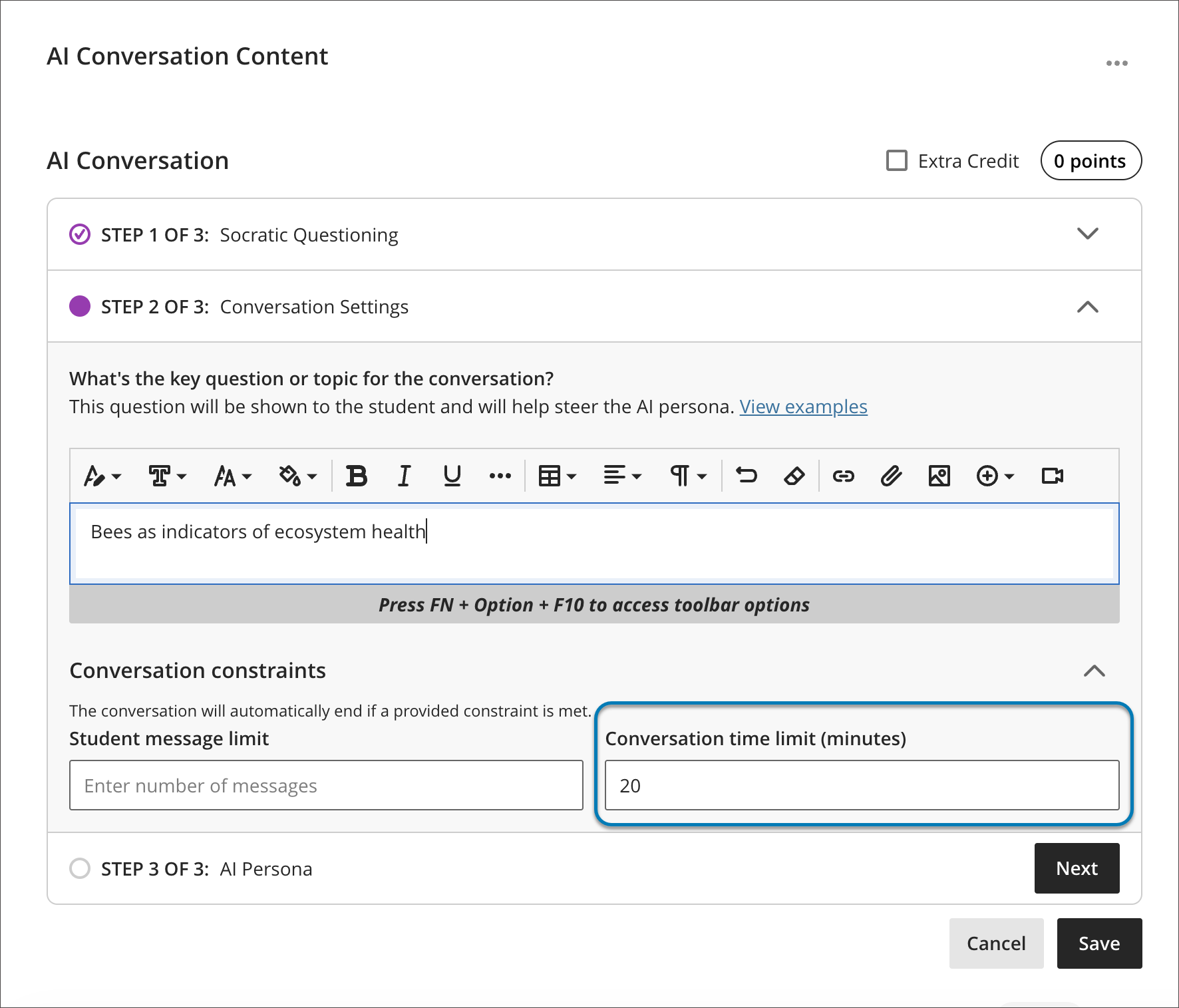 Image 3: Instructors can now set a time limit for either a student's AI conversation, or their written reflection after the chat.
Additional Updates
- Users can now view their favorite courses directly within the Course Switcher. A new Favorites tab surfaces courses marked as favorites on the Courses page, cutting down on trips back to the main Courses page.
- When a user starts a message and adds recipients, any existing conversation with those participants loads right away, making it easy to check recipients and context before sending. Longer conversations remain accessible by scrolling or by selecting "See previous messages" to load the full history.
When can you expect the update?
Faculty should see the latest updates in their Ultra courses around July 2-3, 2026. The next update to our Ultra test environment will take place on July 7, 2026; release notes will be posted to the What's New in Ultra page. Faculty who are interested in test driving new features before they are released to production should open an RT ticket to request early access. Please watch the FAQs, including the What's New with Ultra page, and myUMBC for additional information about Ultra.
Connect with Instructional Technology
As always, if you have any questions about teaching, learning, and technology at UMBC, please consider the following options: