Export Rubrics from Dedicated Hub in Blackboard's October Update
Keep AI conversations in the target language
Down the hall, a colleague teaching another section of the same course asks to borrow the rubric you spent a weekend refining. How do you easily share this rubric in a Blackboard format? Later in the day, your Spanish students are practicing ordering at a café in Madrid through an AI Conversation, until one of them asks a question in English and the AI switches languages right along with them, disrupting the immersive experience.
The October update to Blackboard is a small one, but it makes both of these easier.
Rubrics Get Their Own Home
Each course now has a dedicated rubric management page listing every rubric in a sortable, searchable table, where instructors can create, generate, duplicate, and delete rubrics without first opening an assignment. The bigger news is export and import. A rubric built in one course can now move into another, so your colleague's request becomes a quick export and import rather than rebuilding criteria by hand. For multi-section courses and programs, shared rubrics also mean students are evaluated against the same expectations no matter which section they're in.
Image 1: Rubric page showing ellipsis menu with the Export option.
A More Focused AI Conversation
AI Conversations work best when students stay in the exchange long enough to think, respond, and try again. Three changes keep the activity centered on the conversation itself:
- Lock the language: Instructors can set a language the AI must use for the entire conversation, regardless of what a student requests or what language the source material is in. In language courses, practice no longer slips back into English the moment it gets difficult, and instructors in any discipline can design activities in the language students will need to use.
- A dedicated view: Conversations now open in their own focused space that hides setup and assessment details, so students can concentrate on the dialogue instead of the grading criteria.
- A clear starting point: A new Start conversation button lets students begin when they're ready rather than landing mid-activity.
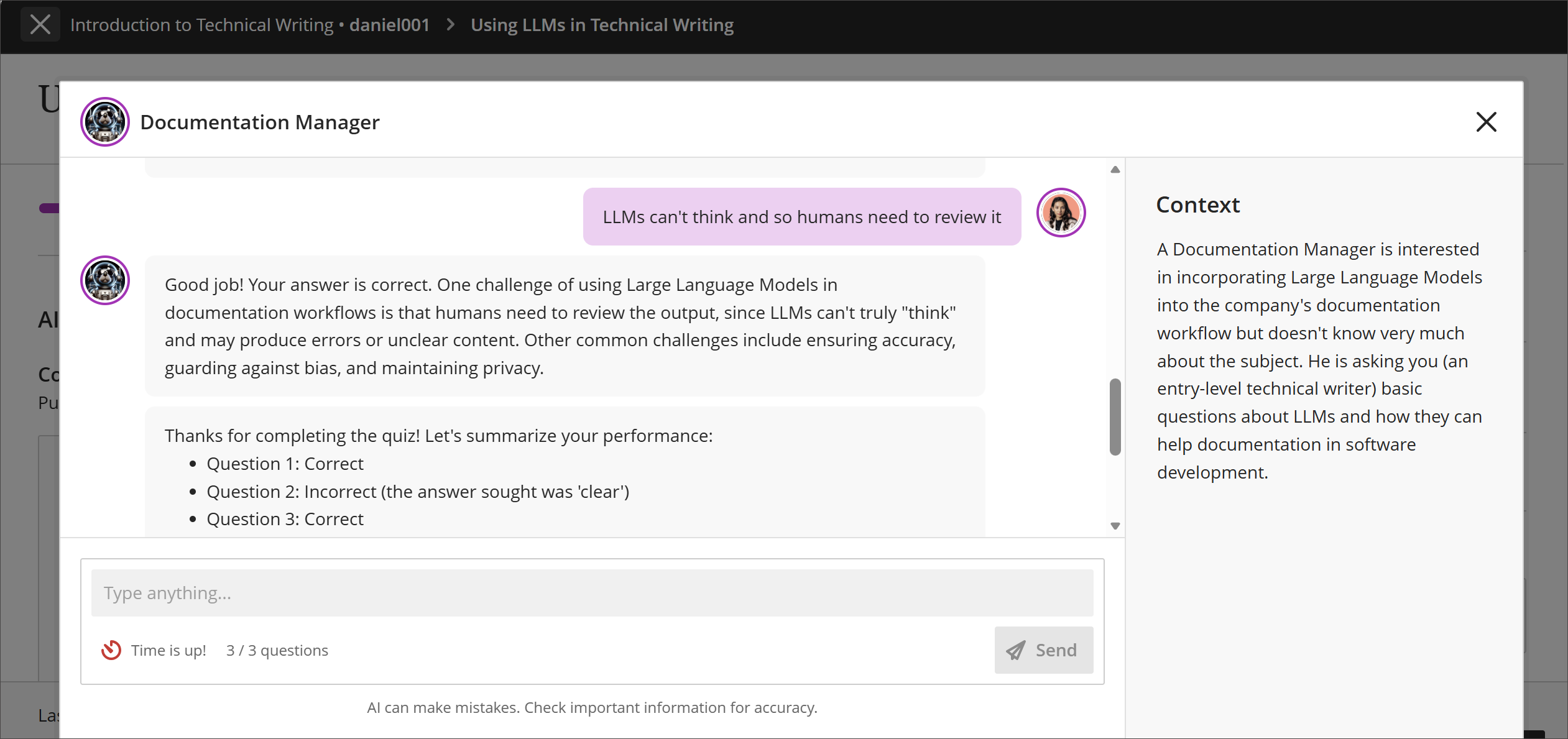 Image 2: The new AI Conversation immersive experience fills a larger area to help students stay focused on their conversation.
Also New in the Gradebook
- Exceptions at a glance: Students with exceptions are now flagged directly in the grid view, so you don't have to open individual cells to find them.
- Optional columns: New toggles in Gradebook Settings add username and last access date to the grid view. Last access offers a quick way to spot students who may have drifted away from the course.
- Points possible: The list view now includes a sortable points possible column for each gradable item.
- Receipt number search: For anonymously graded assignments, you can search by submission receipt number to locate a specific submission, with results shown in a dialog.
When can you expect the update?
Faculty should see the latest updates in their Ultra courses around October 15-16, 2026. The next update to our Ultra test environment will take place around the end of September; release notes will be posted to the What's New in Ultra page. Faculty who are interested in test driving new features before they are released to production should open an RT ticket to request early access. Please watch the FAQs, including the What's New with Ultra page, and myUMBC for additional information about Blackboard.
Connect with Instructional Technology
As always, if you have any questions about teaching, learning, and technology at UMBC, please consider the following options: